Flat / Publish from ChatGPT
Give your ChatGPT report a link.
Ask ChatGPT to export your dashboard as standalone HTML with its chart data. Upload the downloaded files to Flat below and choose "Publish page". You get a link that opens the dashboard in your reader's browser.
Checking your upload limits... · Public · Limits
Drop your finished ChatGPT files here
or choose the files you downloaded.
Select exported filesRecipients can open public links without a Flat account.
Ask for a page you can download.
Ask ChatGPT to save your dashboard as index.html, with the chart data and browser JavaScript it needs. For a report your client can read before a meeting, include the reporting period, conclusions, and source notes in the page itself.
A prompt for a standalone report
Create a standalone HTML report from the material in this chat. Save it as index.html. Include the CSS, browser JavaScript, and chart data in the file. Make it work on phones and without ChatGPT, a build step, or a backend. Include source notes and label any sample data. Give me the finished file to download.
Review the generated claims and calculations. If the page includes separate images or downloads, ask for those files too.
Save the HTML file from ChatGPT.
Download a generated file
Use the download offered with the finished file in your chat. If it was saved to Library, select the file there and choose "Download". Some accounts show Space instead of Library, so use the file controls available in your account.
If ChatGPT gives you a code block
Ask for complete HTML. Copy the code into a plain-text editor and save it as index.html, without the surrounding Markdown fences. Check that your editor did not add .txt to the filename.
ChatGPT can preview supported HTML and React code blocks. A React preview can still depend on its sandbox, packages, or network access. Request standalone HTML or a built static export before publishing it.
This is a manual file-export workflow. A ChatGPT conversation link or private file reference is not a file upload to Flat.
A report that works outside the chat.
The published report shown here has an interactive chart and a CSV download. Readers can switch between units and revenue, then check the source data.
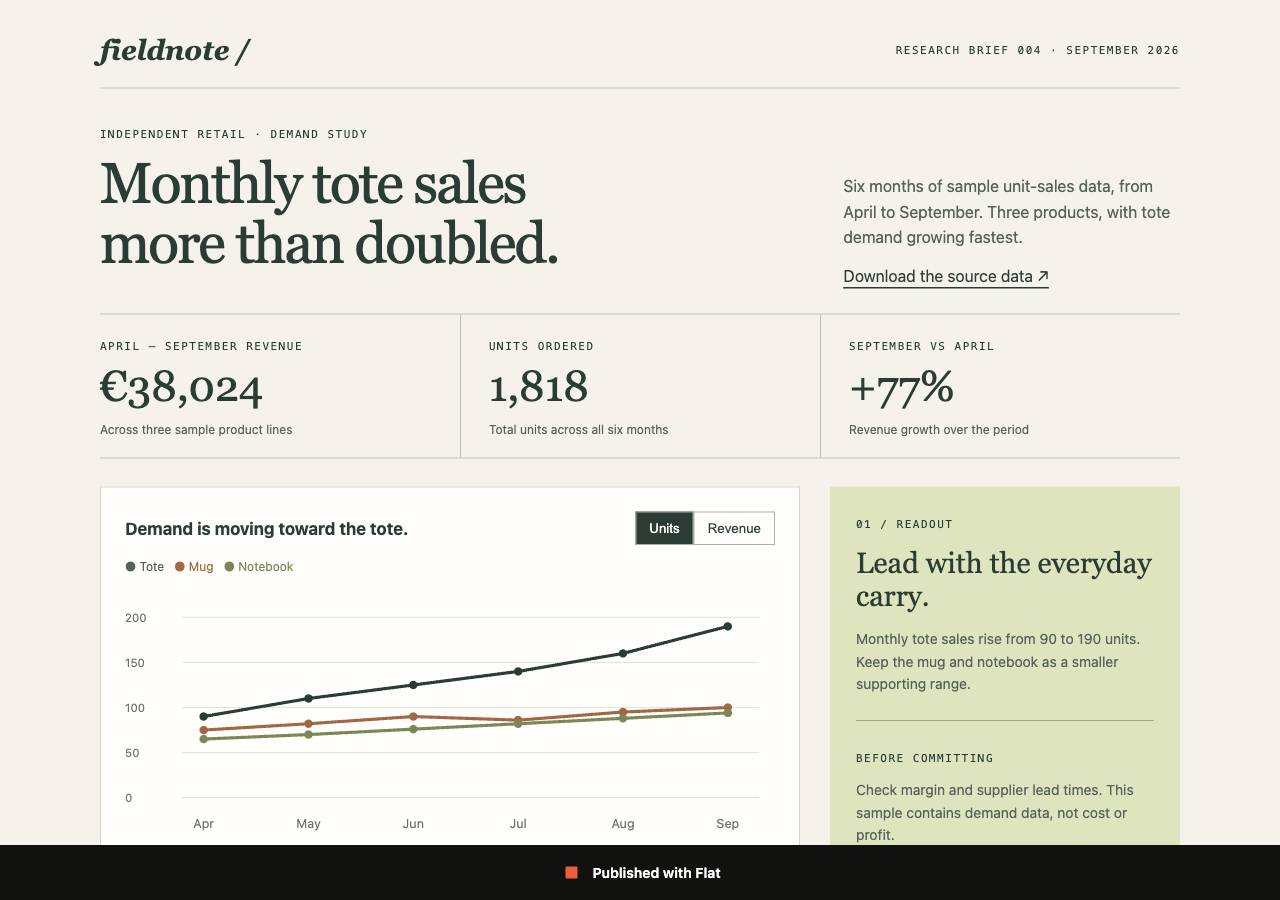
Upload the files, then check the link.
Prepare the main page
Name your main page index.html so it opens at the root link. Include any images, scripts, or downloadable data at the paths used in the HTML. Open the downloaded page in your browser before uploading.
If the export contains source code that needs a build, build it first. A React component or a folder containing package.json is not a finished static site.
Publish in your browser
Select index.html and its supporting files in the uploader above. Enter your email if signed out, then choose "Publish page" to get the link. Browser uploads place all selected files at the top level. Each file needs a unique name.
Browser uploads start public. For private work, set a password before publication through MCP, the CLI, or the API. Signed-out browser uploads expire after one hour. Sign in before uploading work you want to keep.
For nested folders, use the CLI or local MCP to preserve paths. Extract ZIP exports first. The browser uploader does not extract them.
npx -y @getflat/cli deploy ./finished-reportThis command needs Node.js 20 or newer. Replace ./finished-report with your extracted folder or ./index.html for one file.
Inspect the published result
Open the returned URL in a private browser window. Check the text, images, chart controls, and downloads. Try it on a narrow screen. Send the link once the result works without your chat session.
A file named report.html opens at /report.html. Without a root index.html, the main link opens Flat's file viewer or explorer. See HTML hosting and file paths.
Publish the finished page and its browser code.
HTML, CSS, and browser JavaScript can run on Flat. A dashboard with embedded data can keep its charts and filters. Its data stays at the exported version until you create and publish a new one.
Flat does not run Python, Node.js servers, databases, or the AI tool's private runtime. A working preview inside the tool does not prove its download will work elsewhere.
Keep secret API keys, database passwords, and private tokens out of published files. Features that need credentials must call a separate backend that keeps those credentials on the server. Browser-accessible services also need suitable authentication and cross-origin settings.
For a report people only need to read, export a PDF and use PDF hosting. For interactive output, check the exported files against the HTML publishing guide.
Use the link in your handoff.
Send a report with the question you want your client to answer. For a prototype, share the version you want reviewed and ask for feedback in your existing conversation.
See sharing AI-generated work for deliverable ideas, or reports for analysts and researchers for source-data handoffs.
If you use an agent with compatible MCP support, Flat's MCP guide explains publishing from local files or transferring remote files. Connecting a tool alone does not give it access to private ChatGPT attachments.
Publishing from ChatGPT
Does this connect ChatGPT to Flat?
No connection is needed for this workflow. Download or save the finished files, then upload them here. These instructions do not depend on a native ChatGPT integration.
Can I publish an interactive ChatGPT dashboard?
Yes, when the export includes working browser code and its data. Filters and charts can run on Flat, but ChatGPT's Python analysis and private runtime do not transfer with the file. AI answers and queries that need secret credentials require a separate backend. Check the downloaded page outside ChatGPT before publishing.
Can I upload the chat instead?
Ask ChatGPT to turn the material into a standalone report first. Flat publishes the files you supply; it does not turn a conversation URL into a website.
Who can open the link?
Browser uploads start public. Anyone with the link can open them without a Flat account. You can add a password in the upload's Settings in your dashboard. To protect files from the moment they go online, set a password when publishing through MCP, the CLI, or the API. Recipients who have access can still download or forward copies. Set up password protection.
Can I replace files at the same address?
Yes. Publish through MCP, the CLI, or the API to a named onflat.page address or your own domain, then use that same domain for later uploads. Browser uploads create a new version link each time. Earlier version links and downloaded copies keep their original files. Set up a reusable address.
How long do uploads stay online?
Signed-in uploads have no default expiry. Signed-out uploads expire after one hour. Sign in before that deadline to keep them online. Your plan sets upload, storage, and transfer allowances. See pricing and limits.
Share the report you made in ChatGPT.
Download the finished page, publish it here, and open the link before you send it.
Publish pageFree to start · View pricing
Working in Claude? Publish a Claude artifact.