Flat / File collections
Share multiple files with one link.
Keep a report and its spreadsheet together. Upload them as one collection so recipients can browse both files from the same link.
Publish a collectionSelect individual files here. Use the CLI to keep nested folders.
Checking your upload limits... · Public · Limits
Drop the files for your collection
or choose files from your device.
Select filesLet recipients choose what to open
Preview files before downloading
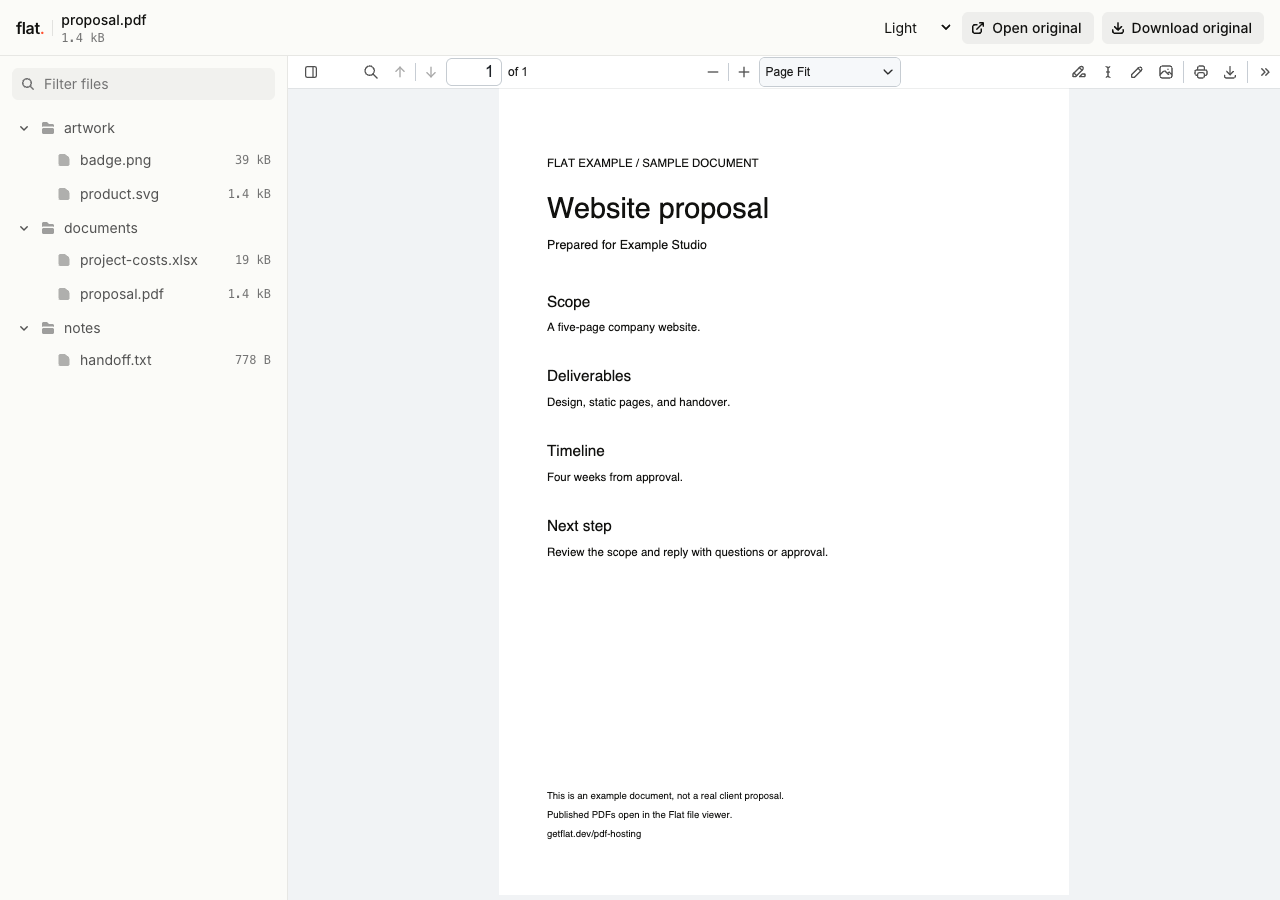
On desktop, recipients choose files from the explorer beside the preview. On mobile, they use the file menu. They can filter by filename or path and expand folders.
Recipients can preview supported files, open the originals, or download them.
Mix documents, media, and notes
Keep the proposal, cost workbook, and reference images together. Recipients do not need to unpack a ZIP or create a Flat account to browse a public collection.
Keep your folder structure
Use the CLI to publish a folder with its subfolders intact.
Publish the collection folder
Replace
./client-handoverwith the folder you want to share.npx -y @getflat/cli deploy ./client-handover
Link to one file inside the collection
Select a file in the explorer, then copy the browser address. The part after #/ selects that file in the viewer, while keeping the rest of the collection available.
- Open the selected preview
- https://YOUR_UPLOAD.onflat.page/#/notes/brief.pdf
- Open the original PDF
- https://YOUR_UPLOAD.onflat.page/notes/brief.pdf
Update a collection after sharing it
Publish the revised set
Publish your updated collection when you add or replace files. Each version has its own link, so you can send someone the exact set of files you want them to review.
Keep one address for the latest files
Use a named link and point it at the revised collection through the CLI or API. Your recipients can return to the same address for updates.
Collection questions
How are files organized?
The explorer lists folders first, then files, with names in alphabetical order. Your filenames stay as you wrote them. Recipients can filter by filename or path to find what they need.
Publish a file collection.
Select all the files you want to include before publishing.