Flat / Local businesses
Share your menu, prices, and flyers.
Upload the files you already use in your business. Customers can read your PDFs in their browser or download a copy without a Flat account.
Checking your upload limits... · Public · Limits
Drop your menu, price list, or flyer here
or choose files from your device.
Choose filesFor your printed QR codes
Change the prices. Keep the QR code.
Before you print table cards or window stickers, set up a named onflat.page address or connect your own domain. Use that address when you make your QR code.
Use Flat's command-line tool to publish revised files at that address. Customers who open it after the update get the new version. The browser uploader creates a new version link each time.
Set up a reusable address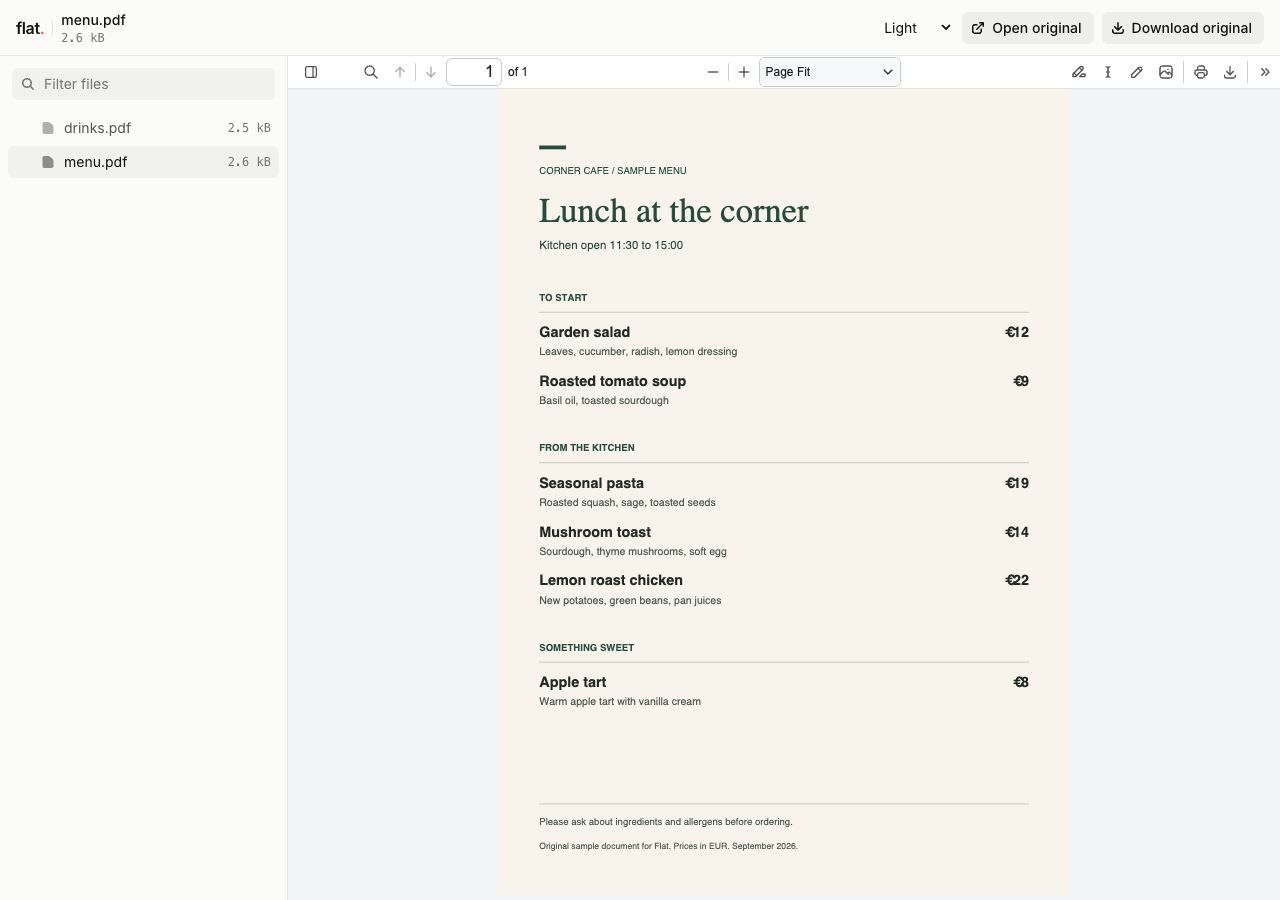
Try the uploader with the sample food menu and drinks list.
Publish what customers ask for.
- Menus
- Share your food menu as a PDF. Upload the drinks list alongside it so diners can choose either file from the same link.
- Service lists
- Send a salon treatment list or a workshop's service guide before a customer calls to book. Include your contact details in the document.
- Event flyers
- Put a flyer link in a social post or customer message. Add the date, venue, and booking details to the file you publish.
- Price sheets
- Give customers a price sheet they can save. Show its effective date so they can tell an older download from your current prices.
From a file to a table card
Check the link before you print.
Flat hosts the document your QR code opens. Create the code in a separate QR tool or your design app after you have your reusable address.
1. Export and publish.
Export your document as a PDF from your usual editor. Sign in before publishing for no default expiry. Try the browser uploader above to check how it reads.
2. Choose the address to print.
Use the command-line tool to publish at a named address, or assign that address to your signed-in browser upload. Paste the reusable address into your QR tool.
3. Scan a printed proof.
Scan the code on your phone. Check the document, text size, and prices. Print the rest once you have checked the address and the file it opens.
Before you share with customers
Can I share a link without making a QR code?
Yes. Copy the published link into a message, social post, or your website. A single PDF opens in Flat's viewer. With several files, customers choose from a file list. Use a reusable address if you want future updates at the same link.
How long will my documents stay online?
Signed-in uploads have no default expiry. Signed-out uploads expire after one hour. Sign in before that deadline to keep them online. Your plan sets upload, storage, and transfer allowances. See plans and limits.
Does Flat make menus or take bookings?
Create and edit the document in your usual app, then publish the finished file with Flat. Keep orders, bookings, and payments in the services you use for those tasks.
Can I schedule breakfast and lunch menus?
Flat does not have a menu scheduler. You can publish both PDFs together so diners choose from the file list, or use the CLI or API to point your named address to another upload when you want to change the menu.
Will an update change copies customers already saved?
No. Downloaded copies and earlier version links keep their original files. After publishing an update, scan your printed QR code again to check that the reusable address opens the revised document.
What if my file has no preview?
Customers can download the original. Export a PDF for a reading copy and check it on your phone before sharing. Read about PDF viewing and limits.
Have your menu or flyer ready?
Upload it and check the link on your phone.
Free to start. View pricing