Flat / Staff training
Give colleagues the files for the workshop.
Share the training manual before a session and keep the practice files beside it. Colleagues can read supported documents in their browser, download an exercise, and return to the instructions when they need a refresher at work.
Checking your upload limits... · Public · Limits
Drop your training materials here
or choose files from your device.
Choose training materialsThis uploader creates public links. For private files, set a password through the CLI or API.
Let staff revisit the instructions.
Readers can open a PDF manual or a supported presentation's PDF preview. Keep essential instructions on the slides themselves or in an accompanying document. A colleague who missed the demonstration should be able to understand the task from the reading copy.
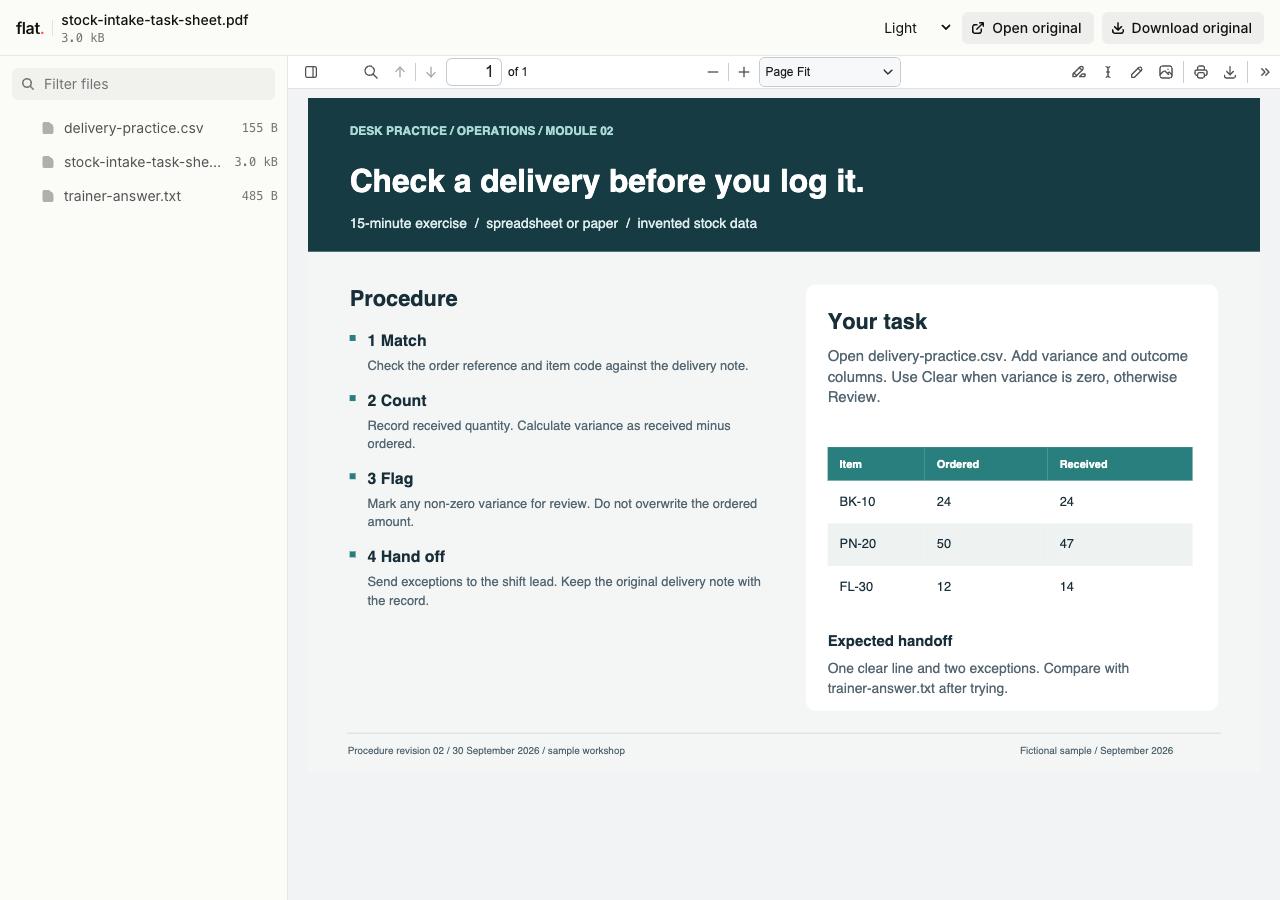
Check an invented delivery, calculate quantity differences, and compare the result with a separate trainer answer.
Extract the sample pack before uploading. To keep nested folders together, publish the extracted folder with the CLI.
Build the pack around a real task.
Choose the procedure staff need to practice and describe its starting conditions. Include screenshots with readable labels and a sample input file when the task needs one. Use invented practice data instead of customer records. Put the expected result in a separate answer sheet for the trainer to discuss.
Separate workshop exercises from desk references.
A full workshop deck can be awkward to consult during a shift. Include a short reference PDF with the procedure and an escalation contact. Put the procedure date in both documents, and ask the process owner to check them before publication. Staff can save or print the reference for their work area.
Prepare your files and share the link
1. Export the session materials
Prepare the manual and slides in your usual editor. Include downloadable practice files and write down any software participants need before the workshop.
2. Publish the approved pack
For internal training, configure a password through the CLI or API before publication. Use the public browser uploader only for training materials approved for public access.
3. Rehearse the participant workflow
Open the slides and download an exercise on a participant's device type. Add the link to the workshop invitation or Teams channel with the preparation instructions.
Before you publish
Can Flat confirm that employees completed training?
Flat does not track training completion, attendance, or assessment results. Record those in your learning system or staff training process, and give participants the relevant instructions separately.
Will slide animations and narration play?
Presentation previews are PDF reading copies. Animations, narration, and embedded video do not play there. Share a separate recording when participants need the demonstration, and check its playback in their browser.
Who can open the link?
Browser uploads are public. Anyone with the link can open them without a Flat account. For restricted material, publish through the CLI or API with a visitor password set before you share. Recipients who have access can still download or forward copies. Set up password protection.
Can I replace files at the same address?
Yes. Publish through the CLI to a named onflat.page address or your own domain, then use that same domain for later uploads. Browser uploads create a new version link each time. Earlier version links and downloaded copies keep their original files. Set up a reusable address.
How long do uploads stay online?
Signed-in uploads have no default expiry. Signed-out uploads expire after one hour. Sign in before that deadline to keep them online. Your plan sets upload, storage, and transfer allowances. See pricing and limits.
Prepare the next training session.
Publish the approved pack and give colleagues its link with the instructions they need before attending.
Free to start. View pricing