Flat / Presentation hosting
Presentation hosting: upload slides and share a reading link
Send your audience a link to your finished slides. Upload a presentation from your browser or the CLI for a PDF reading preview and the original deck download.
Checking your upload limits... · Public · Limits
Drop your Presentation files here
or choose them from your device.
Select Presentation filesWhat readers see at your Presentation link
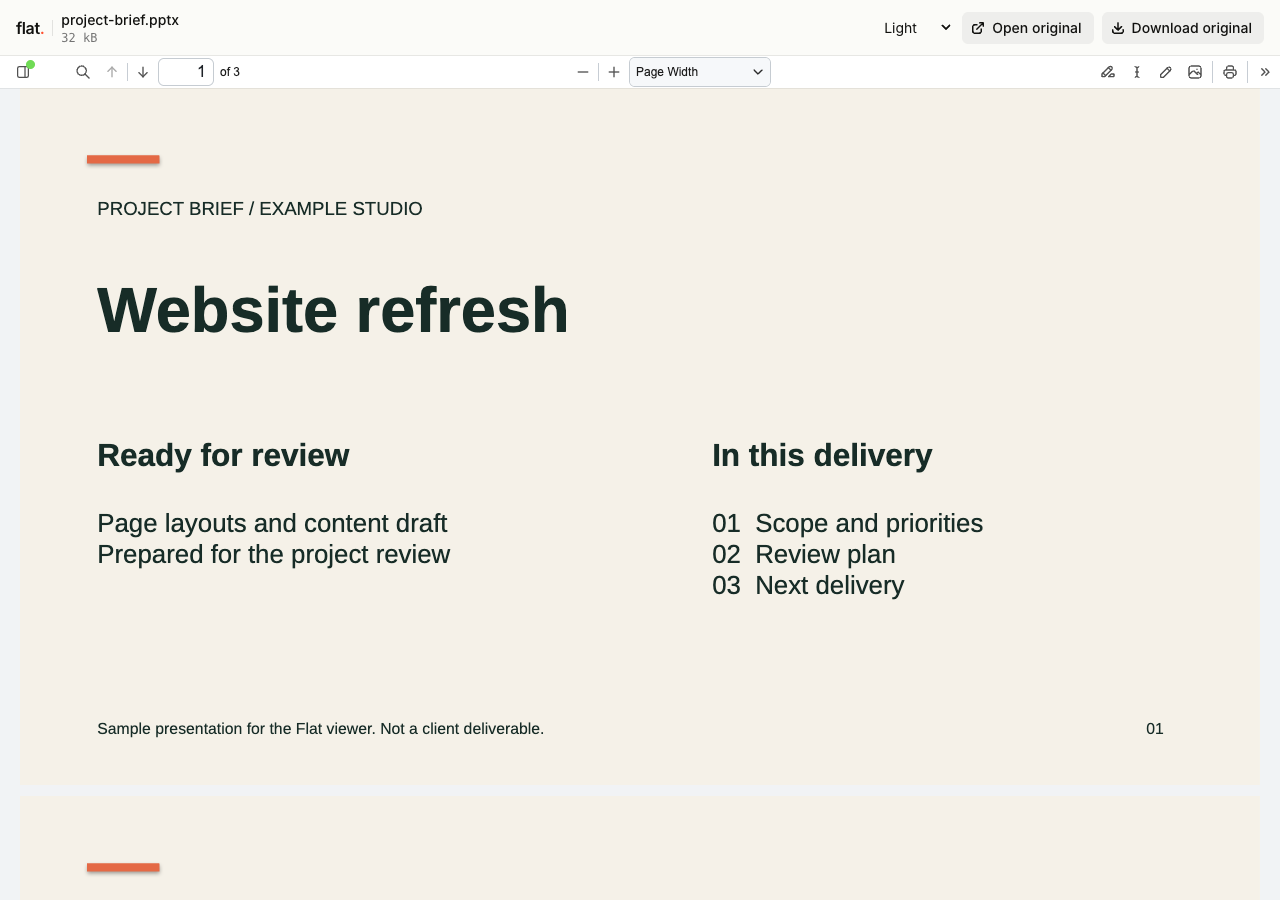
Flat converts PPTX, PPT, and ODP presentations to PDF for its browser viewer. Readers can browse slide pages and zoom in on the content. The example shows a sample PowerPoint project brief after conversion.
This is static slide reading. Animations, transitions, narration, and embedded video do not play. Original downloads let readers open the deck in compatible presentation software.
A single file opens in the viewer. Several files open in the explorer, where readers can choose a file. Public links need no Flat account. Original downloads remain available if a preview cannot load.
The main link opens Flat's viewer. The exact path /project-brief.pptx serves the original file, without changing its contents.
How to upload Presentation files and get a link
Prepare your file
Save the completed deck with its images and other required assets. Check fonts and remove dependencies on remote content. Use PPTX for current PowerPoint files, PPT for legacy decks, or ODP for OpenDocument presentations.
For a fixed reading layout, export a PDF in your own editor. For a timed or narrated presentation, export a video separately. Flat does not create a video from your slides.
Publish from your browser or terminal
In your browserGo to uploaderDrop, publish, copy the link.
Drop your finished files into the uploader above, or select them from your device. Enter your email if signed out, then choose "Publish files".
Selected files need unique names and publish at the top level. Use the CLI for folders; the browser uploader does not accept folders or extract ZIPs.
TerminalNode.js 20+One command. Files or folders.
npx -y @getflat/cli deploy ./project-brief.pptxReplace the example path with your file. Pass a folder to publish related files with their relative paths intact. The CLI prints the published URL.
Check before sharing
Review every converted page before sharing. Check text wrapping, charts, and slides that relied on animation, then verify the original deck download.
Signed-out uploads expire after 1 hour by default. Sign in before expiry to keep them online, or sign in before publishing for no default expiry.
What you can share with Presentation hosting
After-meeting slides
Send the deck discussed in a client meeting as a reading link. A version link records which upload the group reviewed.
Conference and course handouts
Give an audience a link to static slides they can read later, with the source available to people who need to reuse it.
Keep a version, or keep an address.
Share this version
Every upload gets its own link. Publishing revised files creates a new link and leaves the earlier version unchanged. Use the version link when someone needs to review a specific upload.
Update files at one address
Use a named onflat.page address or your own domain. Sign in, then publish with the CLI using --domain. Publish revised files with the same domain to point that address to the new upload.
Named addresses are included on Free. Adding your own domain requires a paid plan. The browser uploader does not set up or repoint these addresses.
Presentation hosting questions
Is hosting free, and what are the limits?
Yes. Signed-in Free includes 5 MiB per upload, 1 GiB of storage, and 5 GiB of monthly transfer, with no default expiry. The per-upload limit covers all files in that upload. Paid plans raise these limits.
Do readers need a Flat account?
No. Public links open without a Flat account. Anyone with the link can open the uploaded files. Password-protected links also require the visitor password.
Can I password-protect my upload?
Yes. Password protection is available on every plan. Add --password YOUR_PASSWORD to your CLI deploy command. It protects access to the upload and its files, but does not prevent someone with access from saving a copy. The browser uploader creates public uploads.
Can I replace files without changing the link?
A version link always refers to its original upload. For same-address updates, use a named address or your own domain. Publish revised files with the same --domain value in the CLI to point that address to the new upload.
What happens when an upload expires?
Flat stops serving it. An expired upload cannot be recovered. Signed-out uploads expire after 1 hour by default. For browser uploads, use the sign-in link shown after publishing. For CLI uploads, run npx -y @getflat/cli login. Complete sign-in before expiry to keep the upload online. If you chose a shorter expiry in the CLI, that deadline stays in place.
Can I upload PowerPoint and Impress files?
Yes. PPTX, PPT, and ODP use PDF conversion for browser previews. The original file keeps its format. Check the result, since conversion support does not guarantee identical rendering for every deck.
Is this a live presentation or collaboration tool?
No. Flat provides static slide reading and original downloads. It does not synchronize a presenter with an audience, edit slides, or collect comments.
What happens if the presentation preview fails?
The original deck remains available to download. You can also export a PDF in your presentation application and publish that reading copy alongside the source.
How large can an upload be?
Upload allowances depend on your plan and cover all files in the upload. Compare current plan limits. Preview availability also depends on format and processing support. The original file remains available to download if a preview is unavailable.
Can I embed the viewer on another website?
Flat's generated viewer cannot be embedded in an iframe and keeps Flat branding on every plan. Link to the viewer for reading or to the exact file URL for the original.
Choose your presentation format
Find the guide for your presentation file.
Give your Presentation files a link.
Publish your file, check the preview, and share the URL.
Publish filesFree to start · View pricing