Flat / Fitness coaches
Send the plan before your client's next session.
Give clients a link to the workout you have prepared. They can read the session instructions on their phone or download a copy to use where they train.
Checking your upload limits... · Public · Limits
Drop your training resources here
or choose files from your device.
Choose training resourcesThis uploader creates public links. For private files, set a password through the CLI or API.
Let clients check the exercise instructions.
A client can open a workout PDF in the browser and look up the sets or rest periods you prescribed. If you include a separate exercise guide, they can choose it from the file list. A downloaded copy is useful when their training space has poor reception.
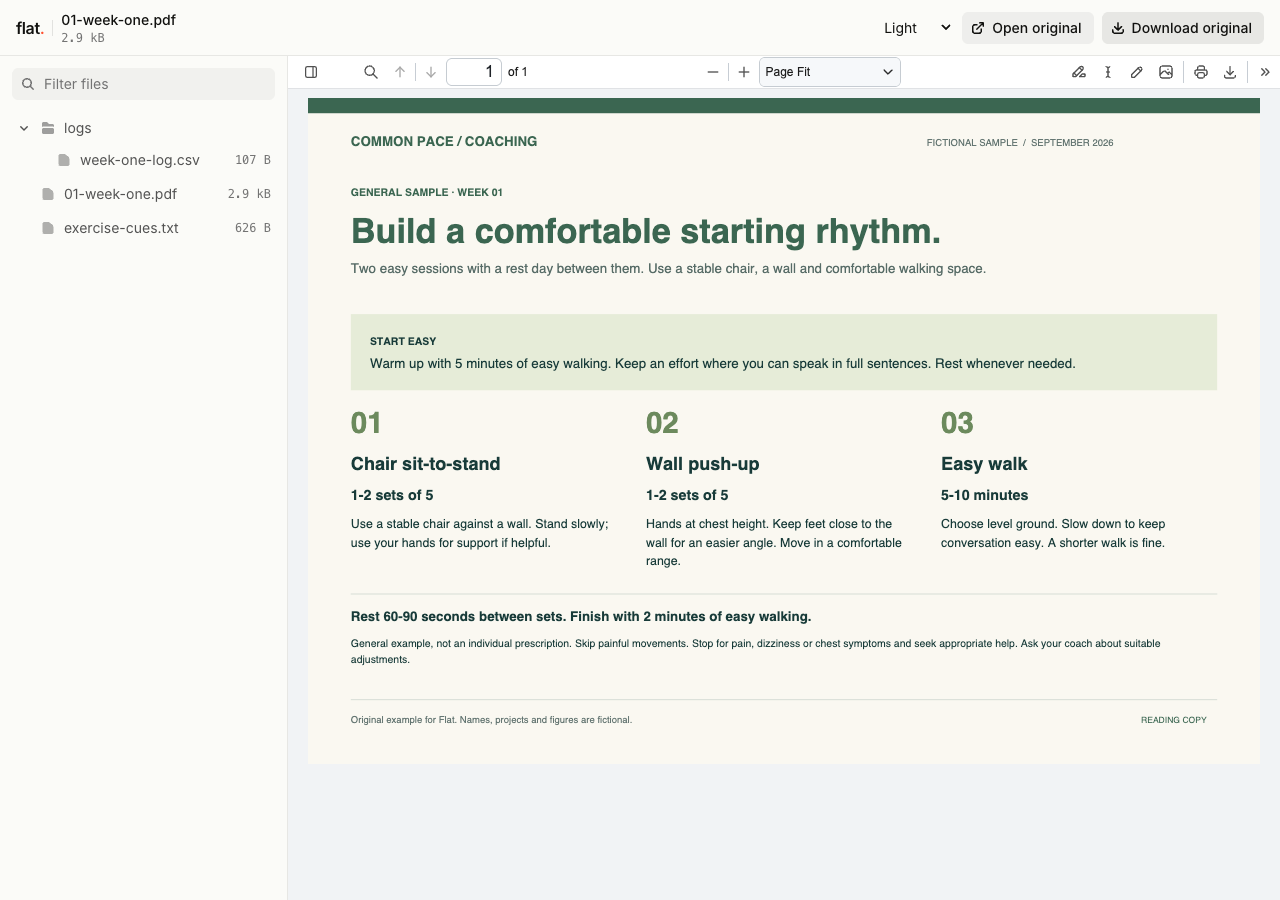
Common Pace's general sample covers chair sit-to-stands, wall push-ups and an easy walk. The downloadable CSV is blank for clients to complete in their own spreadsheet app.
Extract the sample pack before uploading. To keep nested folders together, publish the extracted folder with the CLI.
Write the plan for use during a workout.
Label the training day and put the exercise order where clients can find it. Include the cues and alternatives you want them to follow. Keep the layout readable on a phone, especially for tables of sets and repetitions. You can add a printable log for clients who prefer to write down their results between exercises.
Keep group instructions with the weekly program.
For a group session, publish the program with a short equipment note. Paste the link into your group message or the session reminder in your scheduling tool. Ask clients to read the preparation note before arriving. Use your usual coaching channel for individual adjustments so the shared program stays relevant to the group receiving it.
Prepare your files and share the link
1. Export the session plan.
Prepare a PDF with the training date and exercise instructions. Include a separate tracking sheet if clients need somewhere to record their results.
2. Check the phone view.
Upload your finished resources and open the link on a phone. Make sure the exercise names and instructions are readable at a useful size.
3. Send it with the session reminder.
Share the link in your client message. Explain which workout to use and ask clients to download a copy before travelling to the gym.
Before you publish
Can clients record workout results in Flat?
Flat's spreadsheet preview is read-only. Clients can download a training log and fill it in using their own spreadsheet app, or print a PDF log. Collect their results through your existing coaching process.
Can I include exercise demonstration videos?
Yes. Upload finished video files with the plan and check playback on the devices your clients use. Browser codec support determines whether a video plays. Flat does not transcode it; clients can download the original if they need another player.
Who can open the link?
Browser uploads are public. Anyone with the link can open them without a Flat account. For restricted material, publish through the CLI or API with a visitor password set before you share. Recipients who have access can still download or forward copies. Set up password protection.
Can I replace files at the same address?
Yes. Publish through the CLI to a named onflat.page address or your own domain, then use that same domain for later uploads. Browser uploads create a new version link each time. Earlier version links and downloaded copies keep their original files. Set up a reusable address.
How long do uploads stay online?
Signed-in uploads have no default expiry. Signed-out uploads expire after one hour. Sign in before that deadline to keep them online. Your plan sets upload, storage, and transfer allowances. See pricing and limits.
Get the next workout ready to share.
Publish the finished plan and include its link in your client's session reminder.
Free to start. View pricing