Flat / Events and conferences
Give attendees a link to the event program.
Publish your agenda and venue information before the event so attendees can plan their visit. After the sessions, share approved speaker slides through a file collection that readers can browse and download at their own pace.
Checking your upload limits... · Public · Limits
Drop your event materials here
or choose files from your device.
Choose event materialsThis uploader creates public links. For private files, set a password through the CLI or API.
Help attendees find their next session.
A PDF program gives attendees a reading copy they can save on their phone. Put room names beside session times and include a venue map. With several documents, readers can choose the program or a speaker's slides from the file list.
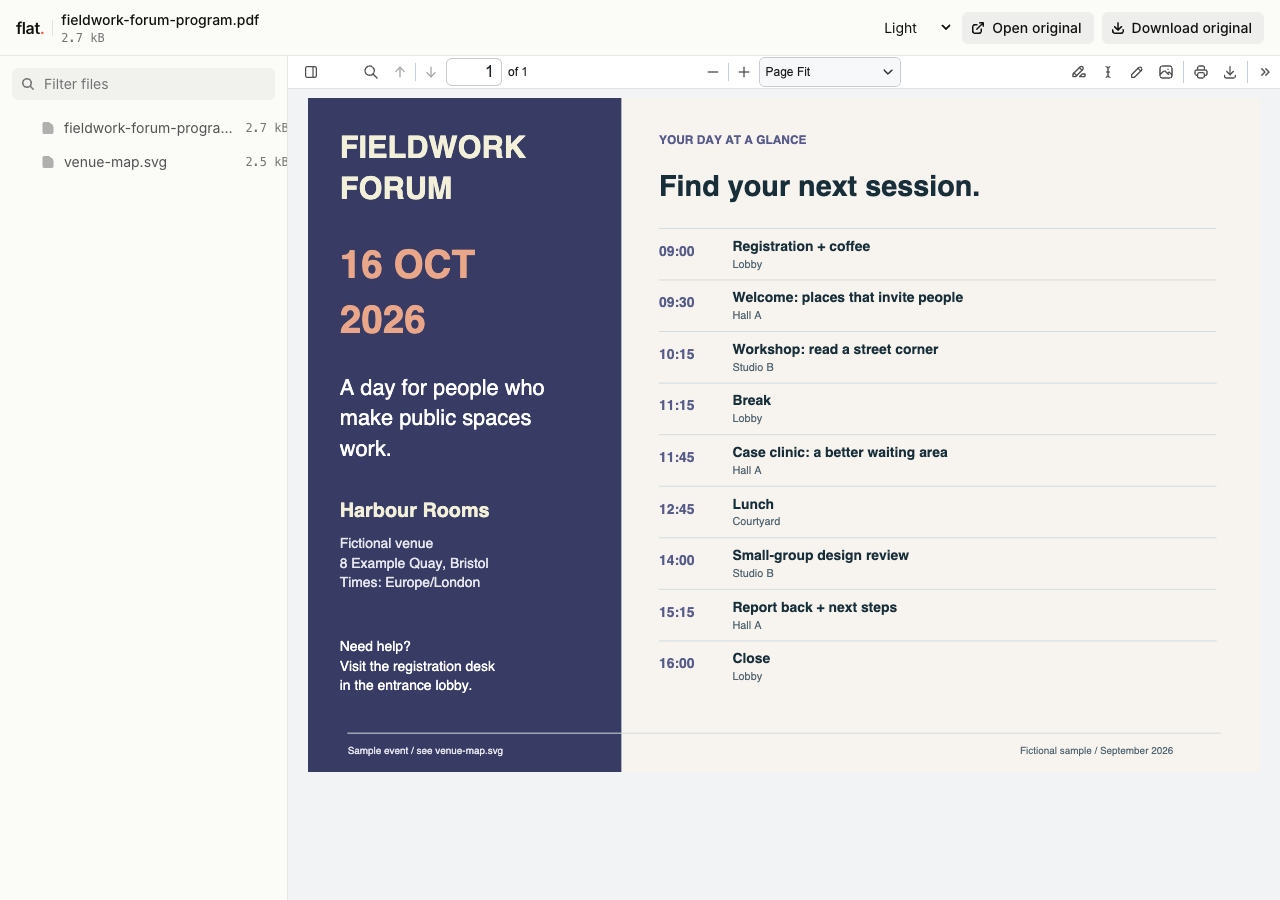
Find the next session in a fictional conference agenda, then inspect the original map for the lobby, halls, and courtyard.
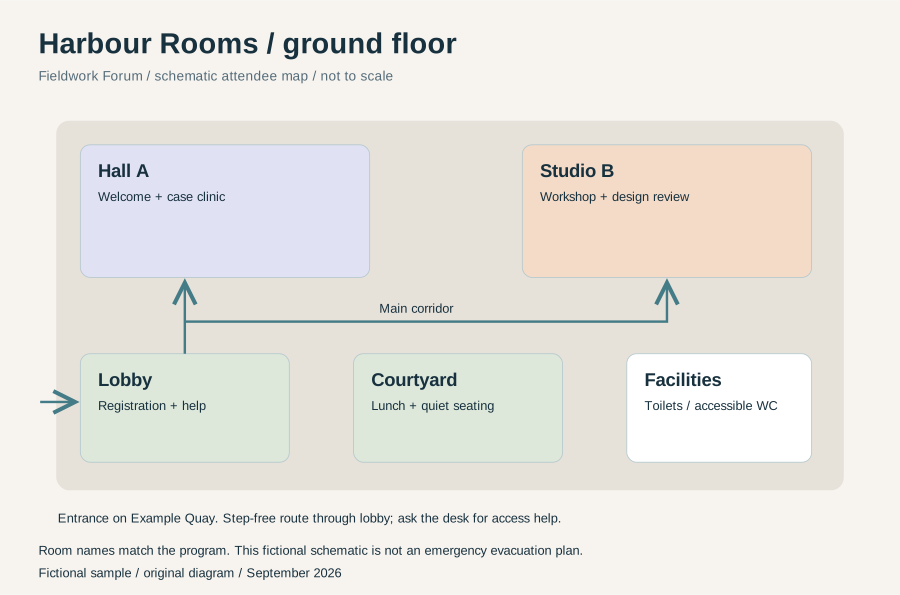
Extract the sample pack before uploading. To keep nested folders together, publish the extracted folder with the CLI.
Check the details people need on arrival.
State the event date and time zone, especially for hybrid sessions. Include the entrance address and explain the route from registration to the meeting rooms. Add an organizer contact for access questions. Export a compact agenda that attendees can read on a phone while they move between sessions.
Publish speaker materials after approval.
Ask speakers which slides you may distribute and whether they want a PDF reading copy or an original file included. Name files with the session title and speaker name. Remove private speaker notes from downloadable originals. In the follow-up email, explain which sessions have materials available and where attendees should send questions.
Prepare your files and share the link
1. Prepare the attendee files
Export the agenda and venue map. Check room names against signage, and ask session owners to confirm the times before you publish.
2. Publish and inspect the program
Upload your public event materials together. Open the link on a phone and download the program so you can check how the saved copy reads.
3. Place the link where attendees look
Add it to the confirmation email and event website. If you want a QR code for signage, create one with an external generator and scan the printed result.
Before you publish
Can attendees register for sessions in Flat?
Use your event platform for registration, tickets, and session booking. Include the relevant booking address in your program so attendees know where to reserve a place.
Can we publish a recording beside the slides?
Yes, you can include a video file. Playback depends on the browser's codec support, and the original remains available to download. Check a real recording on attendees' likely devices before sharing it.
Who can open the link?
Browser uploads are public. Anyone with the link can open them without a Flat account. For restricted material, publish through the CLI or API with a visitor password set before you share. Recipients who have access can still download or forward copies. Set up password protection.
Can I replace files at the same address?
Yes. Publish through the CLI to a named onflat.page address or your own domain, then use that same domain for later uploads. Browser uploads create a new version link each time. Earlier version links and downloaded copies keep their original files. Set up a reusable address.
How long do uploads stay online?
Signed-in uploads have no default expiry. Signed-out uploads expire after one hour. Sign in before that deadline to keep them online. Your plan sets upload, storage, and transfer allowances. See pricing and limits.
Prepare the attendee program.
Publish the approved agenda and include its link in the message attendees receive before they arrive.
Free to start. View pricing