Flat / Architecture and interiors
Let clients revisit the design after the meeting.
Share your finished presentation with the drawings and reference images that explain it. Your client can review the proposed spaces at home and bring specific questions to your next design discussion.
Checking your upload limits... · Public · Limits
Drop your design presentation files here
or choose files from your device.
Choose design presentation filesThis uploader creates public links. For private files, set a password through the CLI or API.
Help clients compare the proposed options.
Clients can read PDF drawings and presentation previews in the browser. Give alternatives distinct names so they can refer to the right option in a reply. They can download the files for a longer review or share the link with someone involved in the design decision.
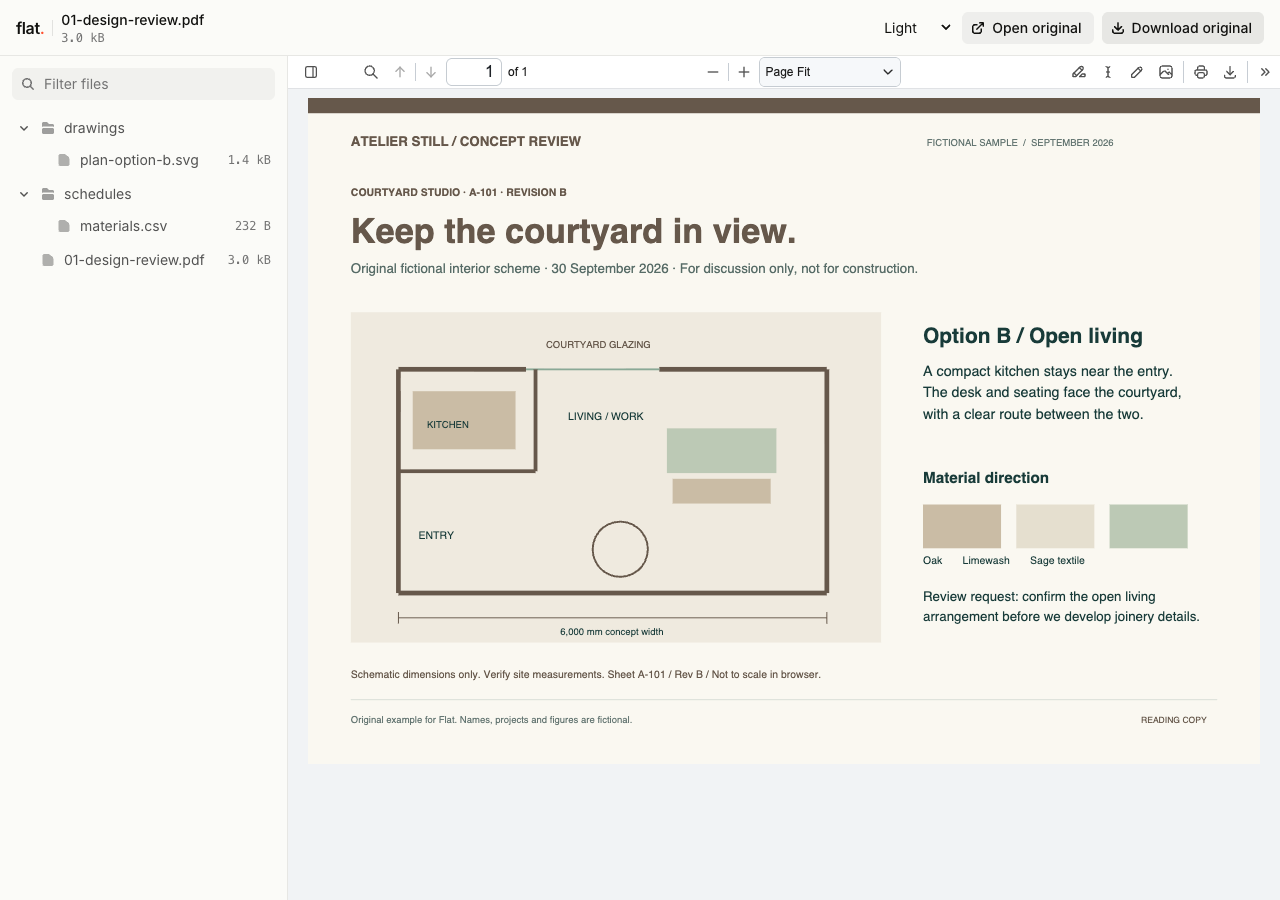
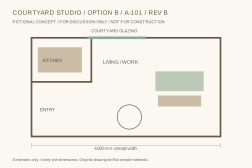
Atelier Still's fictional concept pack presents an open-living option, a courtyard-facing layout and a clear client decision. The PDF and SVG drawing identify their discussion-only status.
Extract the sample pack before uploading. To keep nested folders together, publish the extracted folder with the CLI.
Explain the choice each drawing supports.
Put room names and option labels in the presentation. Include enough context to explain how a material or layout relates to the brief. For an interior scheme, keep the mood board with the relevant room plan. Ask the client to review a defined choice, such as the kitchen layout, so their response gives you a usable next step.
Identify the purpose of the drawing set.
Add issue dates and revision labels inside your exported drawings. State whether the set is for discussion or another agreed project stage. Keep supplier details in a separate schedule when clients need to examine individual items. Put the collection link in your meeting follow-up with the drawing numbers you discussed and the date you need their response.
Prepare your files and share the link
1. Prepare the review set.
Export the relevant drawings and presentation. Check that room names, option labels, and revision information remain readable in the files you will send.
2. Inspect the published details.
Upload the set and open the presentation preview. Zoom into a drawing to check its labels and download the original for comparison.
3. Request a design decision.
Send the link in your meeting follow-up. Identify the option or room you want reviewed and ask clients to reply with the drawing reference.
Before you publish
Can I use Flat as a CAD or BIM viewer?
Flat does not provide a CAD or BIM model viewer. Export PDF drawings or rendered images for browser review. You can include source files for recipients to download and open in compatible design software.
Can clients mark up the drawings in Flat?
Flat does not provide drawing annotations. Ask clients to reference sheet numbers in their reply, or download the PDF and mark it up in their own app. Keep formal design approvals in your existing project process.
Who can open the link?
Browser uploads are public. Anyone with the link can open them without a Flat account. For restricted material, publish through the CLI or API with a visitor password set before you share. Recipients who have access can still download or forward copies. Set up password protection.
Can I replace files at the same address?
Yes. Publish through the CLI to a named onflat.page address or your own domain, then use that same domain for later uploads. Browser uploads create a new version link each time. Earlier version links and downloaded copies keep their original files. Set up a reusable address.
How long do uploads stay online?
Signed-in uploads have no default expiry. Signed-out uploads expire after one hour. Sign in before that deadline to keep them online. Your plan sets upload, storage, and transfer allowances. See pricing and limits.
Prepare the next design review.
Publish your review set and send the link with the decision you need from your client.
Free to start. View pricing