Flat / Virtual tours
Share the virtual tour you have prepared.
Give a prospective visitor a link to explore your property or exhibition. Flat can host a compatible static HTML tour together with the panoramic images and browser scripts included in its export.
Checking your upload limits... · Public · Limits
Drop your standalone tour page here
or choose files from your device.
Choose standalone tour pageThis uploader creates public links. For private files, set a password through the CLI or API.
Let visitors choose where to look.
A working tour export provides its own viewing controls and scene navigation. Your visitor uses those controls in their browser. Flat serves the exported files and does not create the tour or its hotspots.
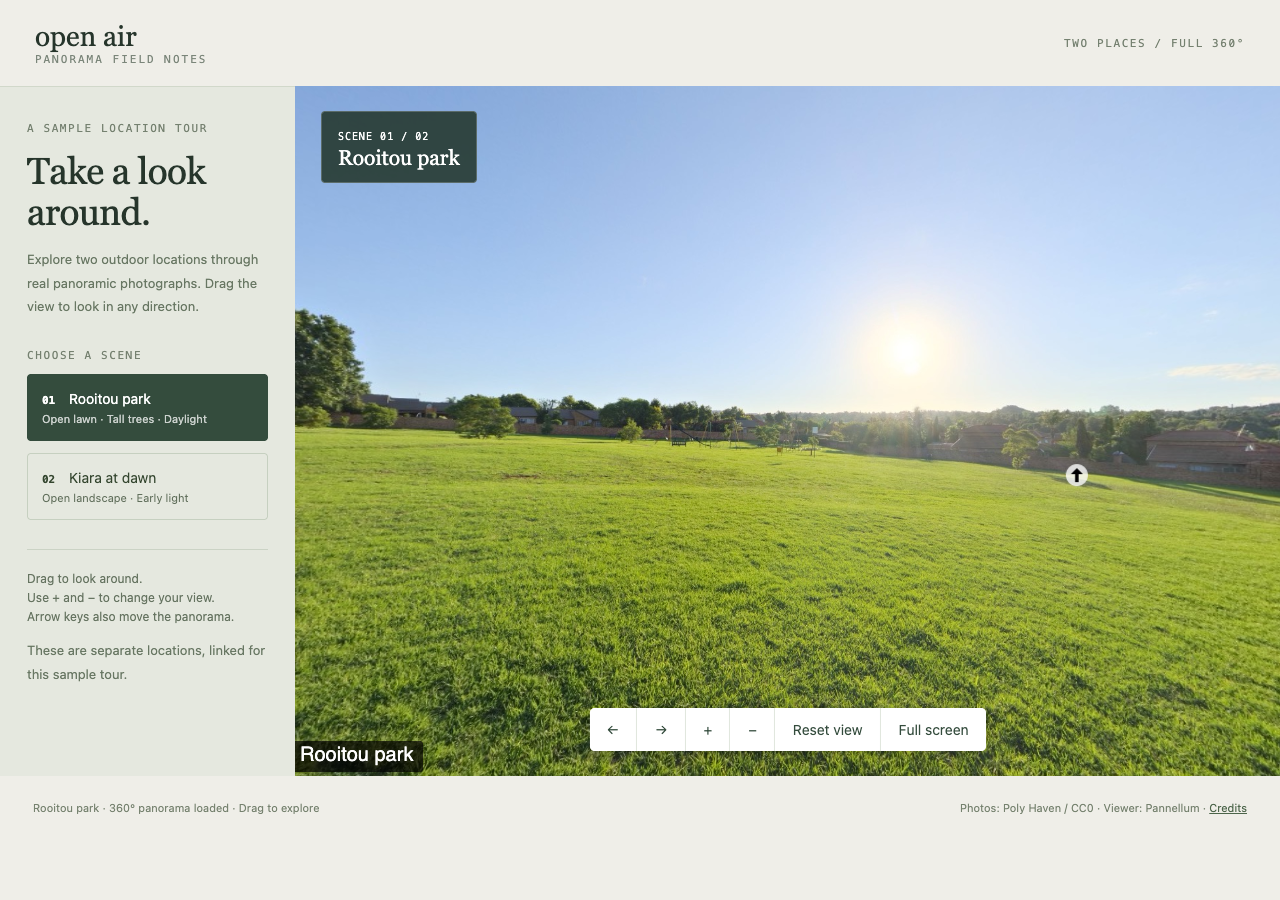
Drag to look around, zoom, or switch between two outdoor scenes. This Pannellum tour bundles its browser code and CC0 panorama photos from Poly Haven. The photos show separate locations linked for this sample tour.
- Open working example
- Download tour HTML
- Download park panorama
- Download dawn panorama
- Download viewer script
- Download viewer styles
- Download viewer license
- Download photo provenance
- Download the complete sample pack
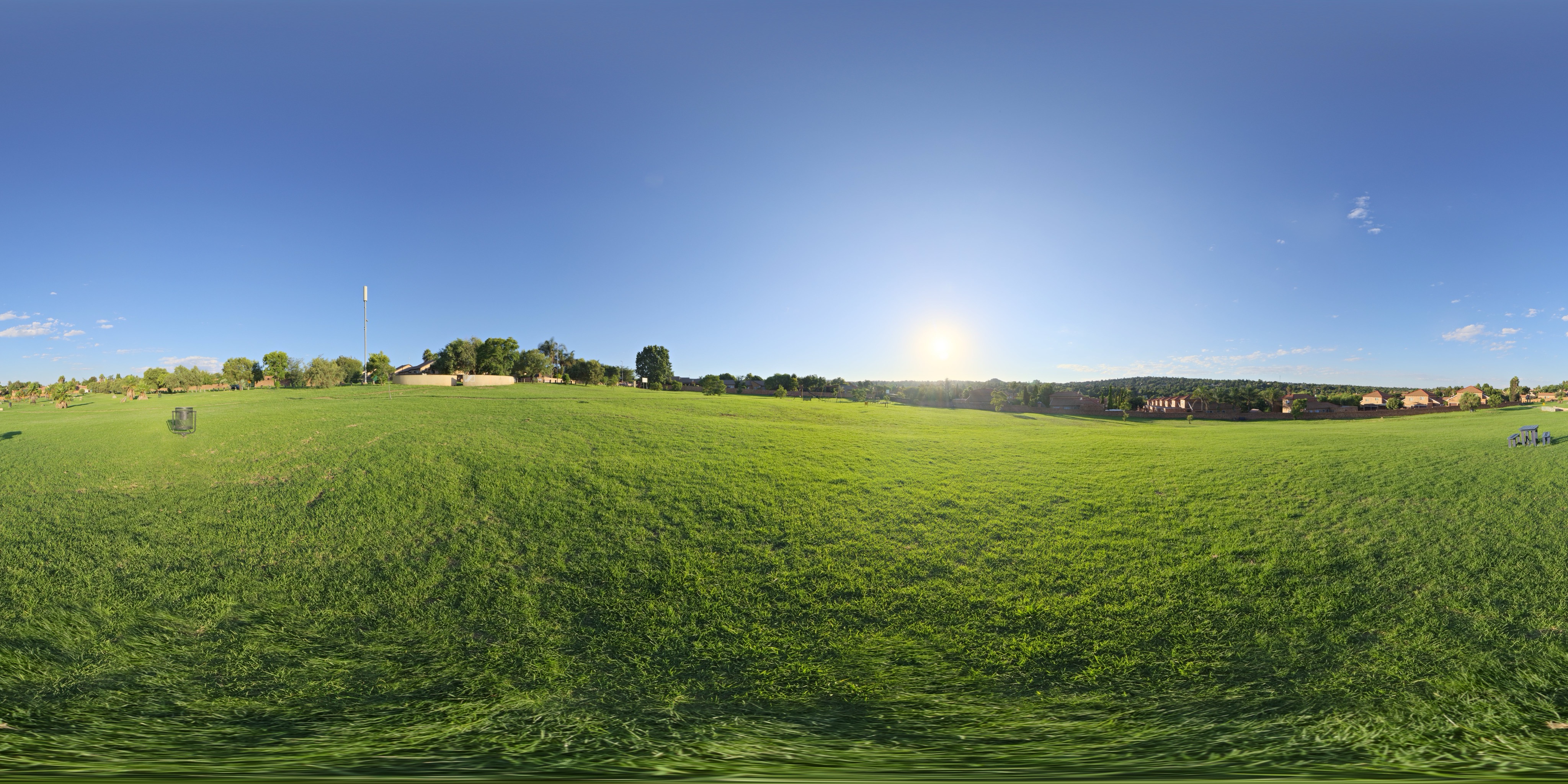
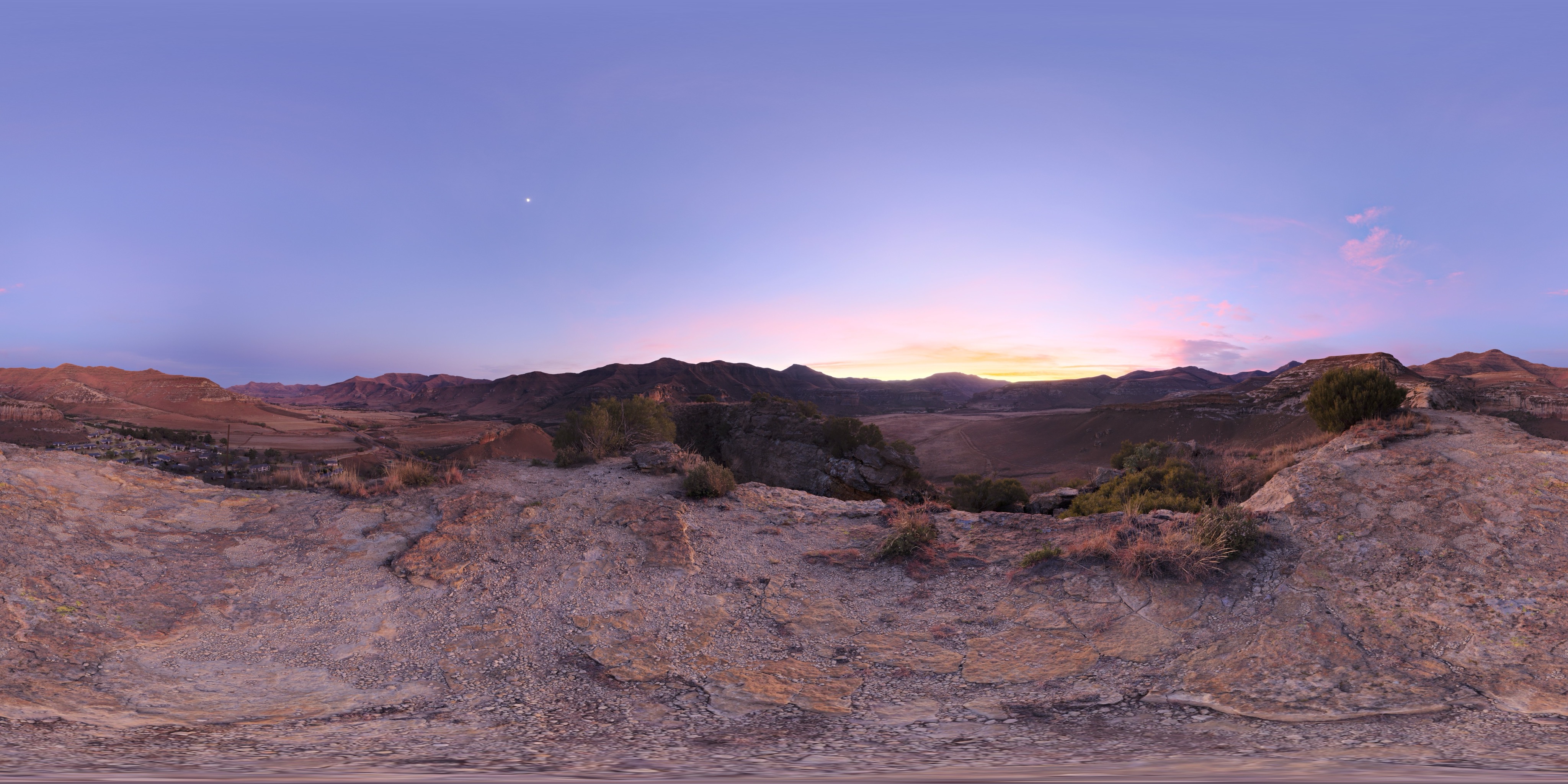
Extract the sample pack before uploading. To keep nested folders together, publish the extracted folder with the CLI.
Give viewers a route through the space.
Choose an opening scene that helps visitors understand where they are. Name rooms or exhibits in your tour editor and check that navigation leads to the intended scene. Add useful context, such as which doorway reaches the next room, before exporting. Those details help someone explore without you guiding them on a call.
Keep the panoramic assets with the tour.
A tour may use many image tiles and scripts in nested folders. Extract the export and publish the complete output through the CLI, preserving relative paths. Use a root index.html to open the tour at the main link. A browser upload of individual top-level files will not preserve a nested tour package.
Prepare your files and share the link
1. Create a static export
Export the finished tour from your authoring tool. Confirm it includes the images and browser code needed to navigate the scenes.
2. Publish the complete folder
Extract any ZIP first. Use the CLI for a typical tour with asset folders; a genuinely self-contained HTML page can use the uploader above.
3. Visit each scene
Open the published link on desktop and phone. Follow the hotspots and inspect panorama loading before sending the tour to visitors.
Before you publish
Can I publish a Marzipano export?
A compatible static export can fit. Verify your actual package on Flat, including image tiles and scene navigation.
Will uploading panoramic photos create a tour?
No. Build the tour in your authoring tool first. Uploading images alone gives readers image files, not a connected panoramic experience with navigation.
Will the tour work on a phone or headset?
That depends on the export's controls and the device's browser support. Test the devices you intend to recommend, including touch navigation. Hosting the files does not add headset or VR support.
Who can open the link?
Browser uploads are public. Anyone with the link can open them without a Flat account. For restricted material, publish through the CLI or API with a visitor password set before you share. Recipients who have access can still download or forward copies. Set up password protection.
Can I replace files at the same address?
Yes. Publish through the CLI to a named onflat.page address or your own domain, then use that same domain for later uploads. Browser uploads create a new version link each time. Earlier version links and downloaded copies keep their original files. Set up a reusable address.
How long do uploads stay online?
Signed-in uploads have no default expiry. Signed-out uploads expire after one hour. Sign in before that deadline to keep them online. Your plan sets upload, storage, and transfer allowances. See pricing and limits.
Publish the export before you invite visitors.
Keep the tour files together, open the published scenes, and share the link once you have checked the route.
Free to start. View pricing