Flat / School communications
Send families a link to the school newsletter.
Publish a finished newsletter or prospectus and share the link through the channels families already use. Parents can read a PDF in their browser or download it to keep important dates and school information at hand.
Checking your upload limits... · Public · Limits
Drop your school publications here
or choose files from your device.
Choose school publicationsThis uploader creates public links. For private files, set a password through the CLI or API.
Make the next date easy to find.
Put the issue date and term on the first page. Families opening a forwarded link can then identify the publication. If you share a calendar beside the newsletter, use a clear filename and refer to it in the message you send home.
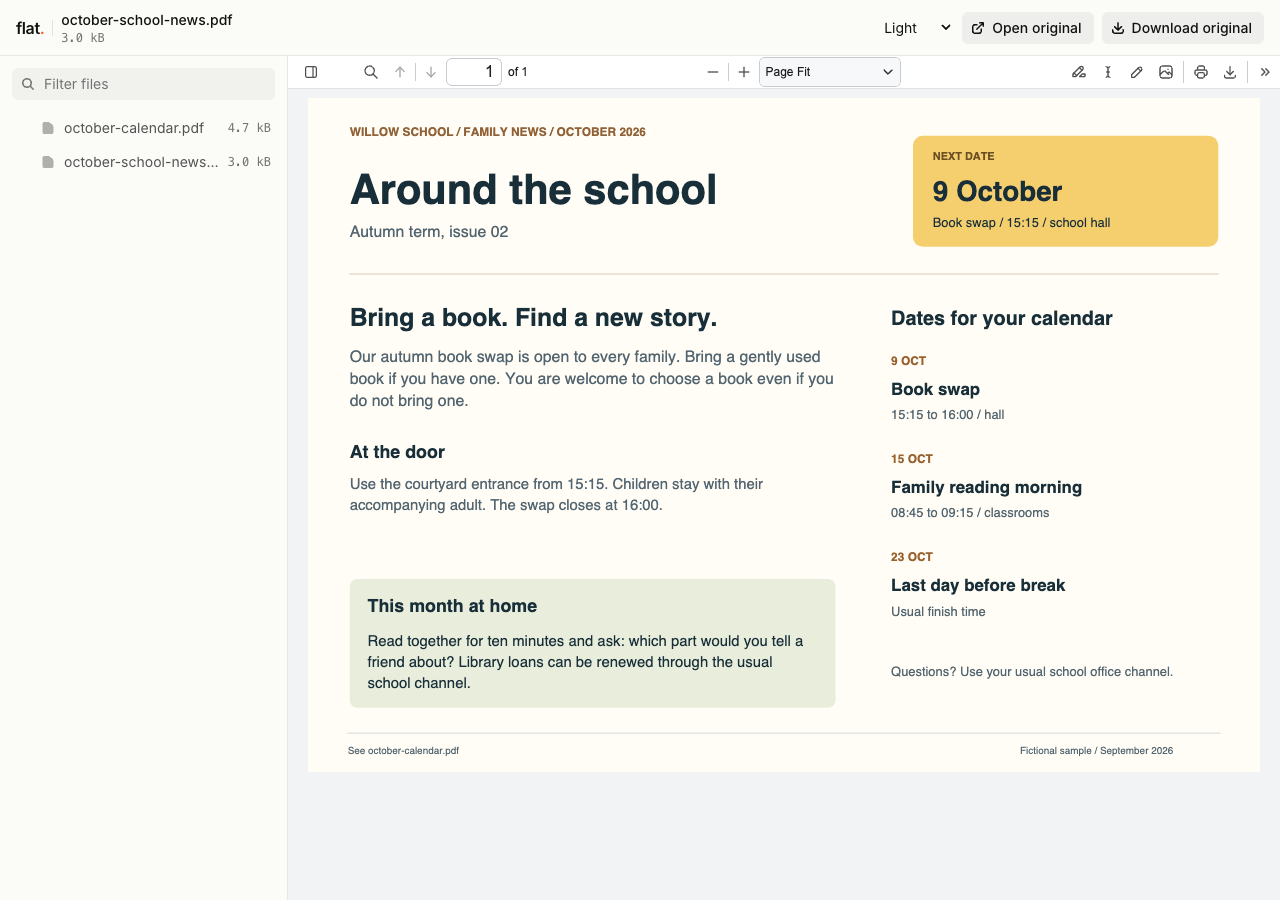
Read a fictional family newsletter and open the October calendar to find the book swap, reading morning, and term break.
Extract the sample pack before uploading. To keep nested folders together, publish the extracted folder with the CLI.
Prepare a newsletter for phone reading.
Use readable type and avoid fitting a whole notice into a small image. Export selectable text where your editor supports it. Check dates against the school calendar and include the office contact for questions. Review photographs and student details through your school's publication process before making the file public.
Give prospective families the approved prospectus.
Add the admissions contact and the school year the prospectus covers. Include instructions for booking a visit through your existing website or office. You can publish separate language editions together, with filenames written for the families who will use them. Check translated dates and contact details before sharing.
Prepare your files and share the link
1. Export the approved publication
Create a PDF of the newsletter or prospectus. Remove editing notes and check the final page for cropped text or missing school contact details.
2. Publish the school files
Use the browser uploader for public publications. For restricted staff or family materials, configure a password through the CLI or API before publication and follow school policy.
3. Send it through the parent channel
Check the published document on a phone. Add the link to the parent email, school app announcement, or website notice with the issue date in your message.
Before you publish
Can families return permission slips through Flat?
Flat can host a blank form for download. Use the school's existing form service or return process to collect completed slips; Flat does not collect parent responses.
Can we share several language editions together?
Yes. Upload the editions in one collection and use filenames that identify each language. Families select their document from the file list. Prepare and review the translations before uploading them.
Who can open the link?
Browser uploads are public. Anyone with the link can open them without a Flat account. For restricted material, publish through the CLI or API with a visitor password set before you share. Recipients who have access can still download or forward copies. Set up password protection.
Can I replace files at the same address?
Yes. Publish through the CLI to a named onflat.page address or your own domain, then use that same domain for later uploads. Browser uploads create a new version link each time. Earlier version links and downloaded copies keep their original files. Set up a reusable address.
How long do uploads stay online?
Signed-in uploads have no default expiry. Signed-out uploads expire after one hour. Sign in before that deadline to keep them online. Your plan sets upload, storage, and transfer allowances. See pricing and limits.
Publish the next school issue.
Check the approved PDF and send families its link through your usual school communication channel.
Free to start. View pricing