Flat / Product teams
Give your product review a reading pack.
Send the product spec before the review so colleagues can arrive with questions. Publish a finished document or a folder of supporting files, then put the link in the calendar invitation or project channel.
Checking your upload limits... · Public · Limits
Drop your product documents here
or choose files from your device.
Choose product documentsThis uploader creates public links. For private files, set a password through the CLI or API.
Let reviewers choose the detail they need.
A designer can open the flow diagram while an engineer reads the requirements. With several files in one upload, reviewers select a document from the file list and download originals when they need a local copy.
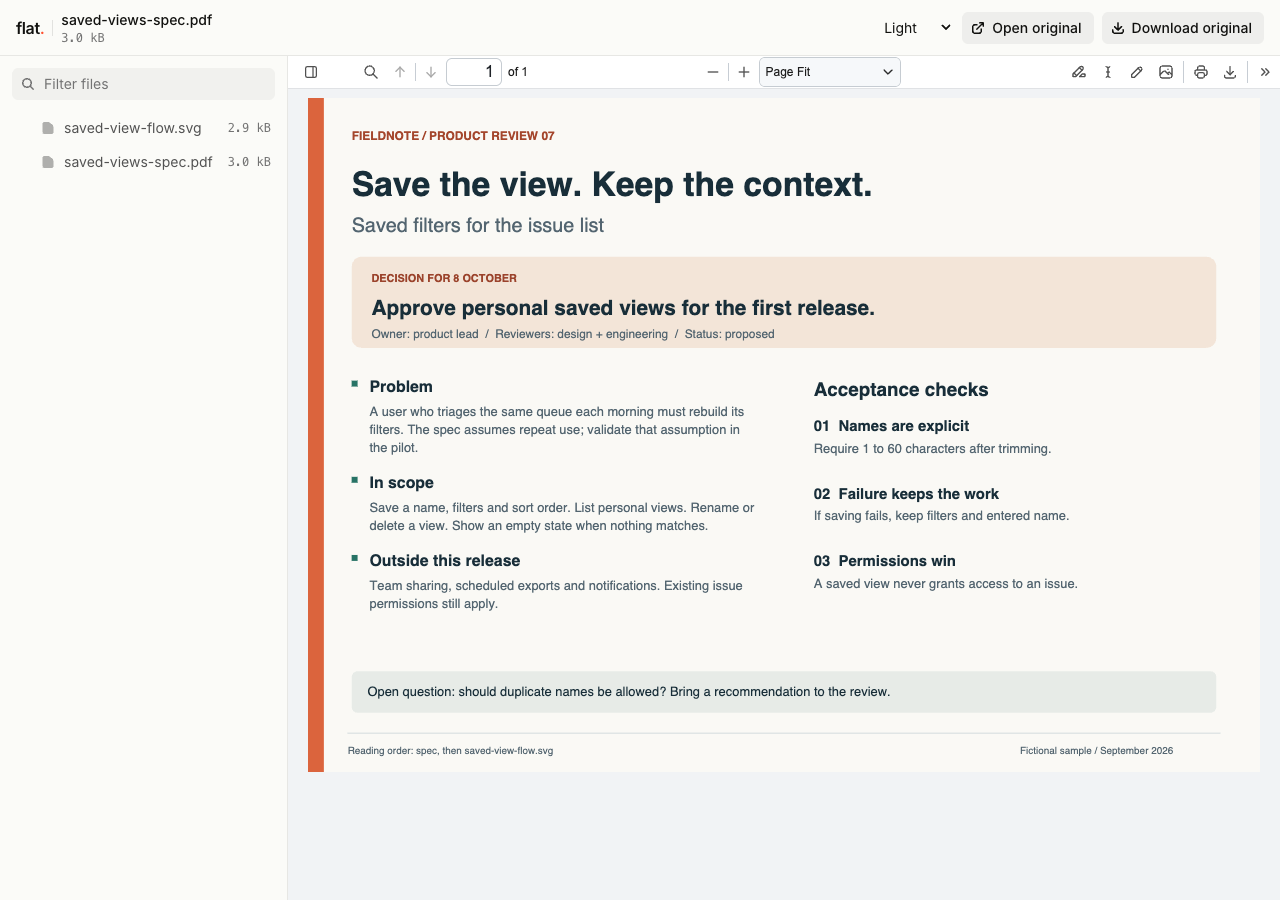
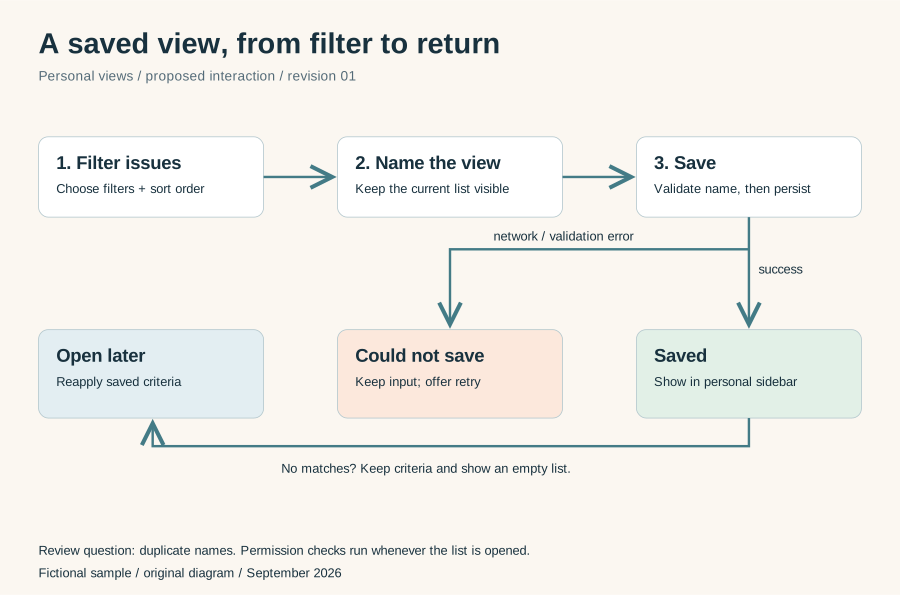
Read a fictional saved-views spec, then open the original SVG to inspect success and error outcomes.
Extract the sample pack before uploading. To keep nested folders together, publish the extracted folder with the CLI.
Put the decision at the start of the spec.
Export a reading copy with the problem, proposed scope, and open questions. Mark assumptions and include the date of the review. Add links to the relevant Linear or Jira issues so reviewers know where to discuss changes. Remove raw interview transcripts and identifying participant details from research summaries you intend to circulate.
Share a roadmap snapshot with its context.
Include a short explanation of the planning period and what each status means. A PDF keeps your roadmap layout; a CSV gives colleagues a read-only table of exported data. State which dates are targets. Keep the working roadmap in your planning tool and publish a snapshot when you have an agreed review point.
Prepare your files and share the link
1. Prepare the review files
Export the spec and supporting diagrams. Use names such as
checkout-spec.pdfandcheckout-flow.svg, and remove draft files that reviewers do not need.2. Publish for your audience
For internal product plans, set a password through the CLI or API before publication. Use the public browser uploader only for materials approved for public sharing.
3. Send a focused review request
Open each preview, then paste the link into Slack or the review invitation. Say which question needs an answer and where colleagues should reply.
Before you publish
Can colleagues comment on the spec in Flat?
Flat does not provide document comments or shared editing. Ask reviewers to leave feedback in the linked issue or your team discussion, with the section name they mean.
Does an uploaded roadmap stay connected to our planning tool?
No. Readers see the files you published. Export another snapshot after planning changes, and record its date inside the document so recipients can identify it.
Who can open the link?
Browser uploads are public. Anyone with the link can open them without a Flat account. For restricted material, publish through the CLI or API with a visitor password set before you share. Recipients who have access can still download or forward copies. Set up password protection.
Can I replace files at the same address?
Yes. Publish through the CLI to a named onflat.page address or your own domain, then use that same domain for later uploads. Browser uploads create a new version link each time. Earlier version links and downloaded copies keep their original files. Set up a reusable address.
How long do uploads stay online?
Signed-in uploads have no default expiry. Signed-out uploads expire after one hour. Sign in before that deadline to keep them online. Your plan sets upload, storage, and transfer allowances. See pricing and limits.
Prepare the next product review.
Gather the approved reading copies and send colleagues a link with the decision you need to make.
Free to start. View pricing