Flat / Product catalogs
Send customers your product range in one link.
Share a finished catalog when a customer asks what you supply. Publish the PDF with its specification sheets or price list so the recipient can review products and prepare an inquiry with the right item numbers.
Checking your upload limits... · Public · Limits
Drop your product catalog here
or choose files from your device.
Choose product catalogThis uploader creates public links. For private files, set a password through the CLI or API.
Keep specifications beside the catalog.
Customers can open the catalog PDF and choose supporting files from the same file list. Use product codes in specification filenames so buyers can match a technical sheet to the item they saw in the catalog. Originals remain available for download.
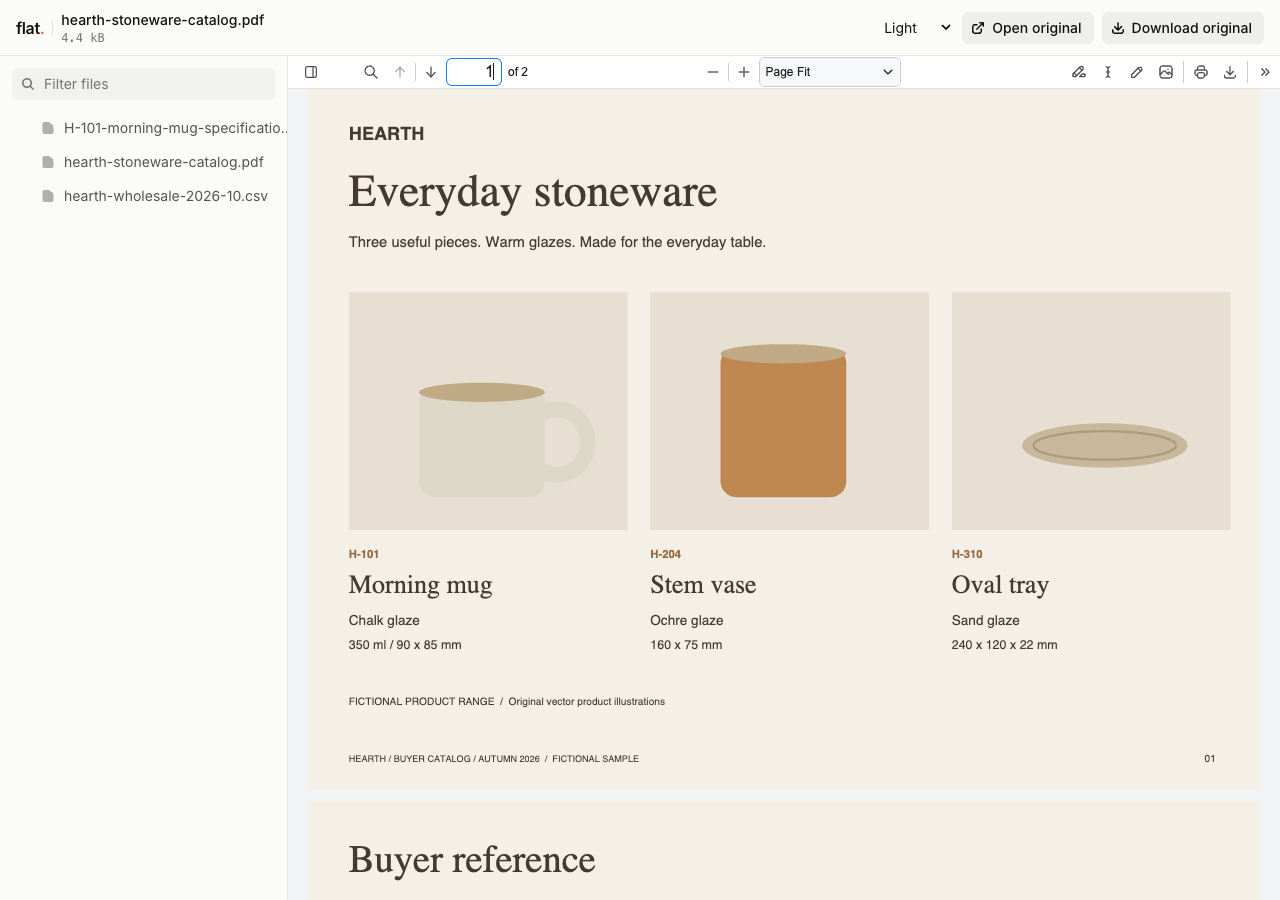
Follow product H-101 from the catalog to its specification and dated price list. All products and prices are fictional; the PDFs and CSV are real downloadable files.
- Download the stoneware catalog
- Download the H-101 specification
- Download the sample wholesale prices
- Download the complete sample pack
Extract the sample pack before uploading. To keep nested folders together, publish the extracted folder with the CLI.
Give buyers enough detail to ask for a quote.
Include dimensions and available options beside each product image. Show the product code where a buyer can find it without checking another page. Add your sales contact and explain what information you need for a quote. Prepare these details in the catalog before uploading so the reading copy contains the full inquiry instructions.
Publish a dated price list with the range.
You can include a spreadsheet when distributors need to work with your pricing data. Flat shows supported spreadsheets as read-only data grids. Use a PDF if the price sheet depends on a designed layout. State the effective date and currency inside either file so a buyer can identify the price list after downloading it.
Prepare your files and share the link
1. Export the customer catalog.
Check product codes against your source records. Export the approved catalog to PDF with readable dimensions and clear product photographs.
2. Include the reference files.
Upload the catalog and the relevant specification sheets together. Remove internal costing tabs before adding a spreadsheet price list to the public collection.
3. Follow one product through the files.
Open the published link and choose an item. Check that its code matches the specification and price list, then send the link to your buyer.
Before you publish
Can customers place an order in Flat?
Use your existing sales process or link to your storefront from the catalog. Flat does not provide a cart, checkout, or stock control. Confirm availability through your ordering system when a customer wants to buy.
Does Flat turn my catalog into a flipbook?
Flat displays PDFs in a browser PDF viewer. It does not add page-turning effects or build an interactive shopping catalog. Export the finished page layout you want customers to read before uploading it.
Who can open the link?
Browser uploads are public. Anyone with the link can open them without a Flat account. For restricted material, publish through the CLI or API with a visitor password set before you share. Recipients who have access can still download or forward copies. Set up password protection.
Can I replace files at the same address?
Yes. Publish through the CLI to a named onflat.page address or your own domain, then use that same domain for later uploads. Browser uploads create a new version link each time. Earlier version links and downloaded copies keep their original files. Set up a reusable address.
How long do uploads stay online?
Signed-in uploads have no default expiry. Signed-out uploads expire after one hour. Sign in before that deadline to keep them online. Your plan sets upload, storage, and transfer allowances. See pricing and limits.
Share the range your buyers need.
Upload the catalog with its reference files and send one link with your next quote.
Free to start. View pricing