Flat / Meeting notes
Give colleagues a link to what you agreed.
Send a finished summary after the meeting so attendees can check decisions and absent colleagues can catch up. Publish a text file or PDF, then add the link to the calendar event or team conversation.
Checking your upload limits... · Public · Limits
Drop your meeting notes here
or choose files from your device.
Choose meeting notesThis uploader creates public links. For private files, set a password through the CLI or API.
Make the follow-up easy to read.
A plain text file opens as readable text, and a PDF keeps your document layout. Recipients can read the published summary in their browser or download it for their records. Put the meeting date in the document and filename.
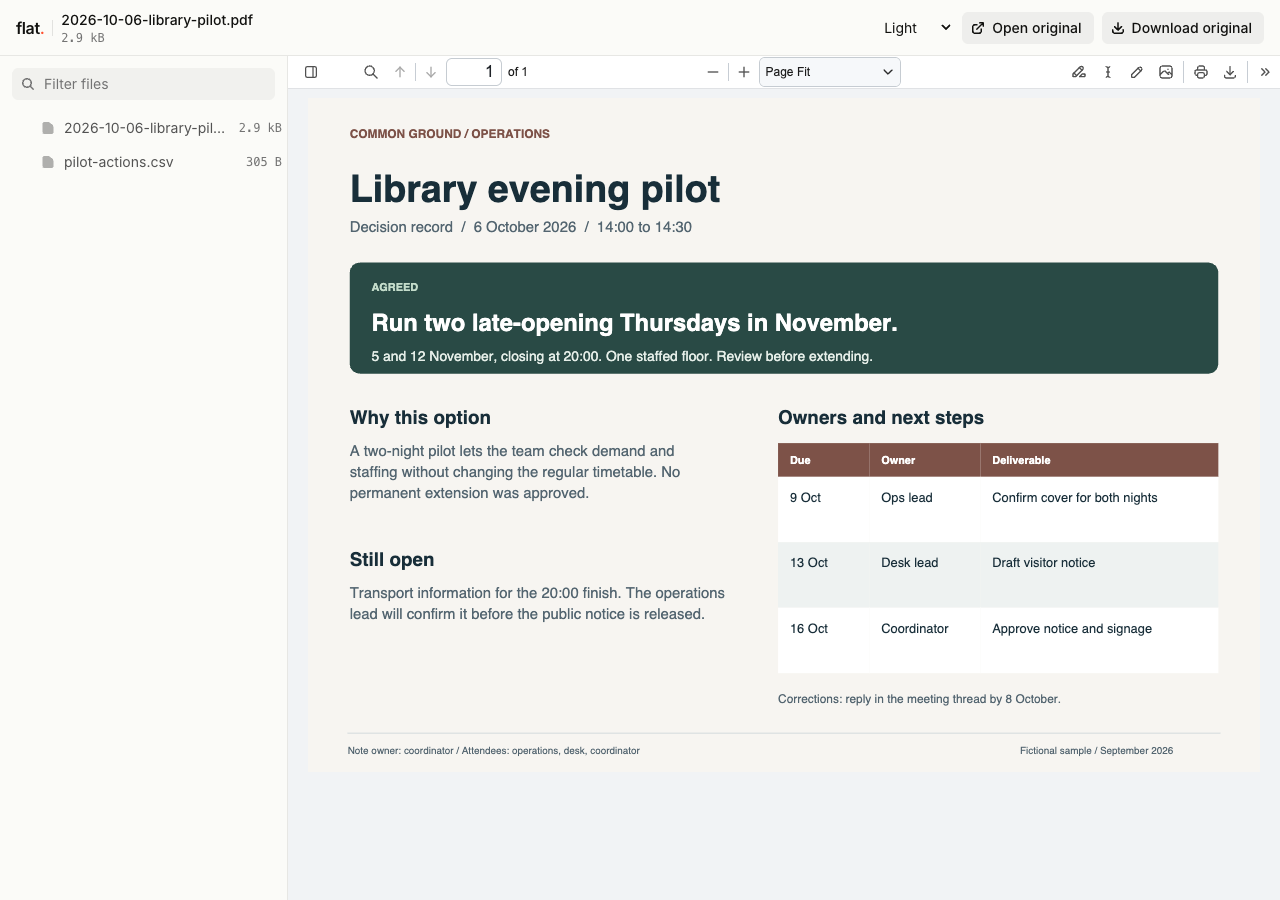
Read the fictional library pilot decision and download its action list as a CSV for the follow-up discussion.
Extract the sample pack before uploading. To keep nested folders together, publish the extracted folder with the CLI.
Separate decisions from unresolved questions.
Write down what attendees agreed and identify anything that still needs a decision. For each action, name the owner and due date you agreed during the meeting. Include links to existing tasks so colleagues can report progress there. Review generated summaries against your own notes before sharing them.
Give absent colleagues enough context.
Explain the reason for a decision without copying the whole discussion. Attach a supporting document when readers need to inspect it, and refer to its filename in the summary. Remove side conversations and details that are irrelevant to the people receiving the notes. Ask attendees to send corrections to the note owner.
Prepare your files and share the link
1. Finish the summary
Resolve shorthand while the discussion is fresh. Export
meeting-notes.txtor a PDF with clear headings, and check that action owners match the agreement.2. Publish with the right access
For internal meetings, set a password through the CLI or API before publication. Use the public browser uploader only for notes intended for public readers.
3. Send the follow-up
Open the published notes and check task links. Paste the URL into the meeting's Teams thread or follow-up email and ask owners to confirm actions there.
Before you publish
Can attendees edit the same notes in Flat?
Flat does not provide collaborative editing. Draft together in your usual editor, then publish the agreed summary. Keep corrections in one discussion so the note owner can reconcile them.
Does Flat manage the action list?
Flat displays the uploaded file. Use your task tracker for assignments, reminders, and status changes. Include task links in the notes so readers can reach the working action list.
Who can open the link?
Browser uploads are public. Anyone with the link can open them without a Flat account. For restricted material, publish through the CLI or API with a visitor password set before you share. Recipients who have access can still download or forward copies. Set up password protection.
Can I replace files at the same address?
Yes. Publish through the CLI to a named onflat.page address or your own domain, then use that same domain for later uploads. Browser uploads create a new version link each time. Earlier version links and downloaded copies keep their original files. Set up a reusable address.
How long do uploads stay online?
Signed-in uploads have no default expiry. Signed-out uploads expire after one hour. Sign in before that deadline to keep them online. Your plan sets upload, storage, and transfer allowances. See pricing and limits.
Send the agreed meeting summary.
Publish the finished notes and add their link to the conversation where colleagues will follow up.
Free to start. View pricing