Flat / Magazines and newsletters
Give your latest issue a reading link.
Publish the magazine or newsletter you have finished in your layout app. Flat gives you a link you can put in an email or on your publication's website. Readers open the issue in their browser and can save the PDF.
Checking your upload limits... · Public · Limits
Drop your issue here
or choose files from your device.
Choose issueThis uploader creates public links. For private files, set a password through the CLI or API.
Let readers open the complete issue.
Readers see the pages in a PDF viewer with the layout you exported. They can download the original to keep or print. Include the issue number and date on the cover so a saved copy remains easy to identify later.
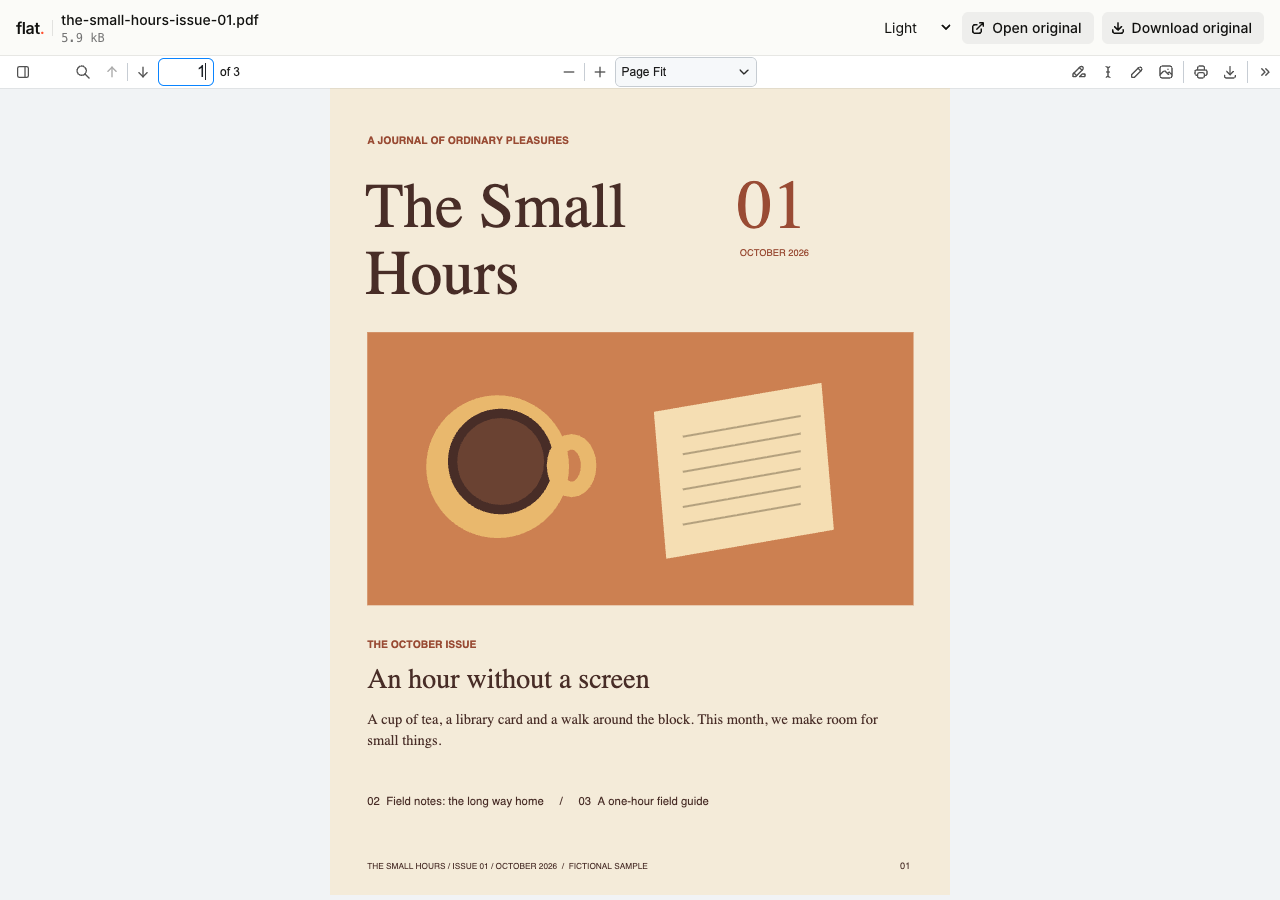
The fictional first issue of The Small Hours contains a cover, an original short essay, and a screen-free activity page. Download the complete issue as a PDF.
Prepare the edition for screen reading.
Check body text and captions on a phone before distributing the issue. A dense print spread may need a separate reading edition with larger text or individual pages. Export that edition from your design app and inspect the PDF. Flat hosts your finished layout; it does not reflow a print magazine into a responsive article website.
Make a small back-issue collection.
Publish several issue PDFs together when readers need access to earlier editions. Give each file a name with its year and issue number so the sequence is clear in the file list. For a larger archive, organize links on your existing website with a description of each issue so readers can choose by topic.
Prepare your files and share the link
1. Export the approved issue.
Check the contents page against the final page numbers. Export a PDF with embedded fonts and readable images from your layout app.
2. Publish the edition.
Upload the PDF with its issue date in the filename. Add companion files only when they belong with that edition, such as a printable activity sheet.
3. Check the reading copy.
Open the cover and a text-heavy article on your phone. Check any links, then put the issue address in your subscriber email or website.
Before you publish
Does Flat turn the PDF into a page-turning magazine?
Flat uses a browser PDF viewer. It does not create a flipbook or add animated page turns. Your exported pages keep their layout, and readers can download the PDF for their preferred reading app.
Can Flat send the newsletter or manage paid subscriptions?
Use your email platform to send the issue link and manage the mailing list. Keep billing and subscriber access in your subscription service. Flat does not send newsletter campaigns or check whether a reader has a paid subscription.
Who can open the link?
Browser uploads are public. Anyone with the link can open them without a Flat account. For restricted material, publish through the CLI or API with a visitor password set before you share. Recipients who have access can still download or forward copies. Set up password protection.
Can I replace files at the same address?
Yes. Publish through the CLI to a named onflat.page address or your own domain, then use that same domain for later uploads. Browser uploads create a new version link each time. Earlier version links and downloaded copies keep their original files. Set up a reusable address.
How long do uploads stay online?
Signed-in uploads have no default expiry. Signed-out uploads expire after one hour. Sign in before that deadline to keep them online. Your plan sets upload, storage, and transfer allowances. See pricing and limits.
Publish the issue you have finished.
Upload the PDF, check a few pages, and share the reading link with your audience.
Free to start. View pricing