Flat / Link-in-bio pages
Give people one page to find your work.
Put your latest project and contact details on a page you designed. Publish the finished HTML with Flat, then add its address to your social bio so visitors can choose where to go next.
Checking your upload limits... · Public · Limits
Drop your bio page here
or choose files from your device.
Choose bio pageThis uploader creates public links. For private files, set a password through the CLI or API.
Let visitors choose their next link.
Visitors open your page in their browser and follow the links you included. You control the order and wording in your source file. Put your main destination near the top so someone arriving from a social profile can find it on their phone.
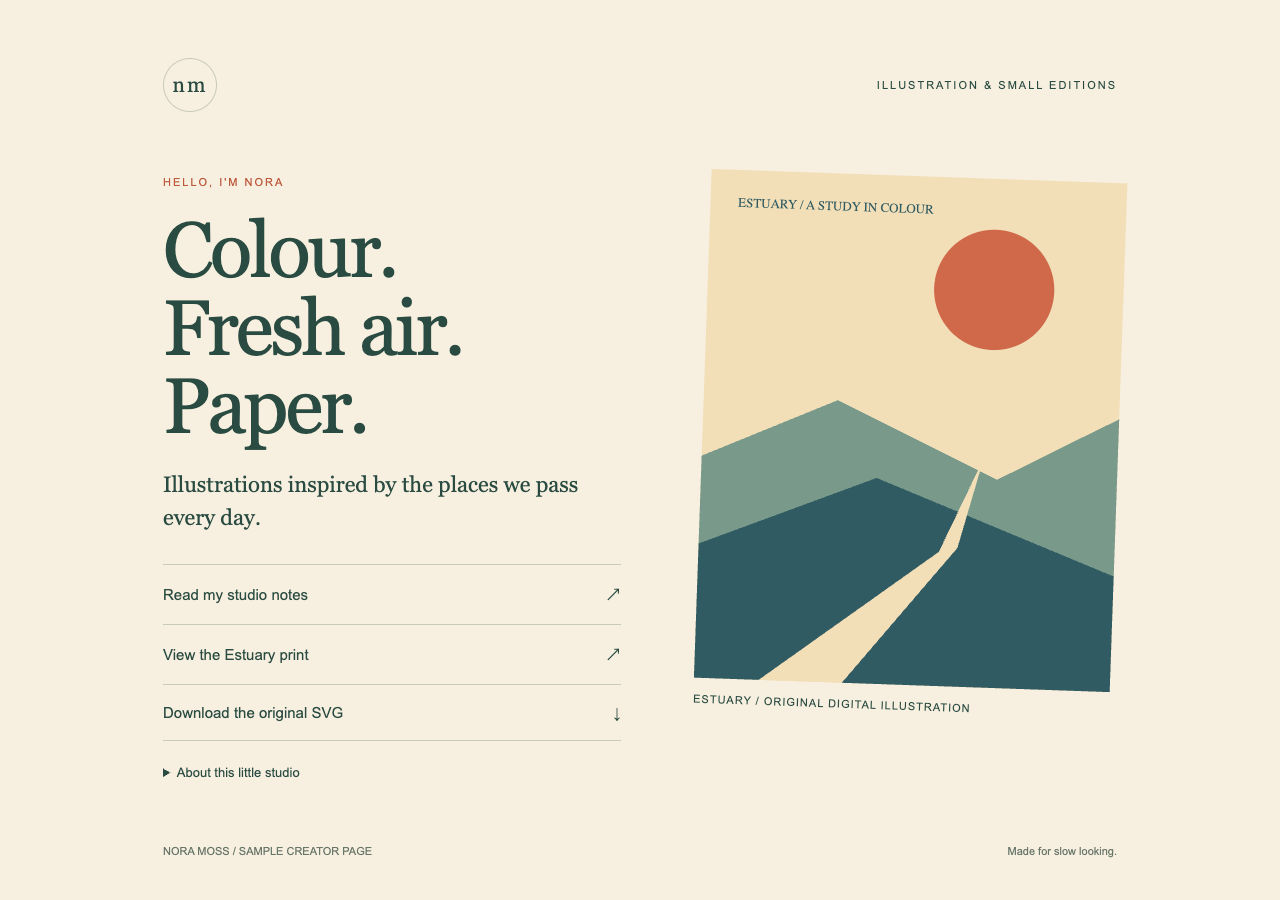
Open the fictional illustrator's HTML page, read the studio note, or download the artwork. Every destination is a real file in this sample.
- Open working example
- Download the bio page
- Download the studio notes
- Download the original SVG print
- Download the complete sample pack

Extract the sample pack before uploading. To keep nested folders together, publish the extracted folder with the CLI.
Keep the page focused on your current work.
A short introduction gives visitors a reason to follow your links. Add a project image if it helps explain what you make, then label each destination with its name or purpose. You can link to a portfolio PDF on Flat or send visitors to your existing shop. Edit the page in your usual editor before publishing.
Publish a complete HTML page.
Prepare a self-contained index.html, or include its images and styles in the same folder with working relative paths. Flat serves that page at the main address. Check that the export works without an editor login or a development server. Any newsletter signup or purchase link should lead to the service you use for that task.
Prepare your files and share the link
1. Choose the destinations.
Write a short introduction and add your main links. Use descriptive labels such as the project title so visitors know what they will open.
2. Publish the finished page.
Upload your self-contained HTML file. If you have a website folder with separate assets, publish the complete folder through the CLI.
3. Check it from your phone.
Open the published page and follow each link. Check the spacing between buttons, then paste the address into your social profile's website field.
Before you publish
Can I design the page inside Flat?
Create the page in an HTML editor or a tool that exports a static website. Flat publishes the finished files. If you use a site builder, confirm that you can export a working page with its supporting assets.
Can my page link to a shop or a booking calendar?
Yes. Add ordinary links to your existing storefront or scheduling service. Visitors complete purchases or bookings there. Flat does not provide checkout, booking management, or an email signup service.
Who can open the link?
Browser uploads are public. Anyone with the link can open them without a Flat account. For restricted material, publish through the CLI or API with a visitor password set before you share. Recipients who have access can still download or forward copies. Set up password protection.
Can I replace files at the same address?
Yes. Publish through the CLI to a named onflat.page address or your own domain, then use that same domain for later uploads. Browser uploads create a new version link each time. Earlier version links and downloaded copies keep their original files. Set up a reusable address.
How long do uploads stay online?
Signed-in uploads have no default expiry. Signed-out uploads expire after one hour. Sign in before that deadline to keep them online. Your plan sets upload, storage, and transfer allowances. See pricing and limits.
Publish the page behind your profile.
Upload your finished HTML and check the links before adding it to your bio.
Free to start. View pricing