Flat / Course creators
Give students a link to the next lesson.
Publish a standalone lesson or a set of course resources, then send the link in your course email or learning platform. Students can open supported files in their browser and save worksheets to use during the session.
Checking your upload limits... · Public · Limits
Drop your course resources here
or choose files from your device.
Choose course resourcesThis uploader creates public links. For private files, set a password through the CLI or API.
Keep the workbook beside the lesson.
Upload your reading notes and exercise files together so students can choose what they need. Include an editable original for exercises that require another app, with a PDF copy for students who want to read or print the instructions.
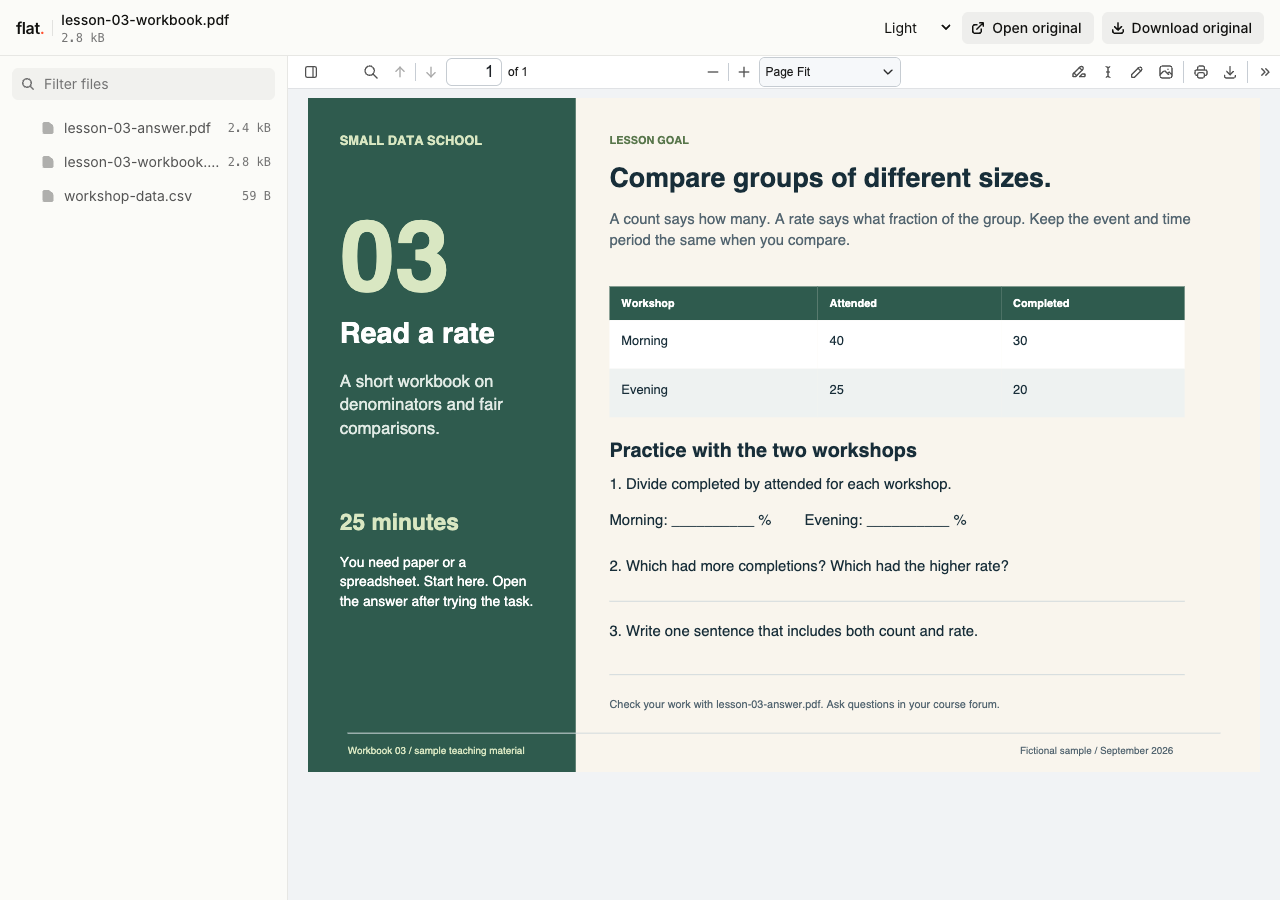
Try the rate-comparison exercise on paper or in a spreadsheet. Open the separate answer sheet to check the calculation.
Extract the sample pack before uploading. To keep nested folders together, publish the extracted folder with the CLI.
Prepare a lesson students can follow alone.
Start with the lesson goal and explain what students should open first. Give exercise files names that match the instructions. Add an expected result or worked example in a separate document so students can check their work after trying the task. Tell them where to send questions.
Publish a finished HTML lesson.
For a browser lesson, put index.html at the root with its images and other assets. Check relative links before uploading the folder. Self-contained client-side exercises can run as part of your page. Server logins, saved submissions, and course progress need services outside this static upload.
Prepare your files and share the link
1. Export one lesson pack
Finish the workbook and reading notes in your editor. Include a short instruction file that explains any software students need for the exercises.
2. Publish the prepared files
Upload resources approved for public access through the browser. If the pack needs a password, configure it through the CLI or API before publication.
3. Check the student route
Open the link on a phone and download the workbook. Add the link to your lesson email or Moodle resource with a clear instruction about where to begin.
Before you publish
Can I run my course administration in Flat?
Use your learning platform for enrollment, grading, and progress tracking. Flat publishes the finished lesson files you link from that platform; it does not provide those learning management functions.
Can students complete a workbook in the viewer?
Students can read the workbook and download it. Ask them to complete a copy in their usual app or on paper, then submit it through your existing course process.
Who can open the link?
Browser uploads are public. Anyone with the link can open them without a Flat account. For restricted material, publish through the CLI or API with a visitor password set before you share. Recipients who have access can still download or forward copies. Set up password protection.
Can I replace files at the same address?
Yes. Publish through the CLI to a named onflat.page address or your own domain, then use that same domain for later uploads. Browser uploads create a new version link each time. Earlier version links and downloaded copies keep their original files. Set up a reusable address.
How long do uploads stay online?
Signed-in uploads have no default expiry. Signed-out uploads expire after one hour. Sign in before that deadline to keep them online. Your plan sets upload, storage, and transfer allowances. See pricing and limits.
Send your next lesson pack.
Publish the finished resources and include their link beside the lesson instructions students already receive.
Free to start. View pricing