Flat / Client handoffs
Give your client one place to collect the files.
Put the finished project documents and working files in one upload. Send the link in your handoff email so your client can find the files they need to take over the work.
Checking your upload limits... · Public · Limits
Drop your handoff files here
or choose files from your device.
Choose handoff filesThis uploader creates public links. For private files, set a password through the CLI or API.
Help the next person find their part.
A client can choose a document from Flat's file explorer, preview supported formats, and download the originals. The person managing the budget can open the spreadsheet while a designer downloads the artwork. Include a short handoff note that explains where to begin.
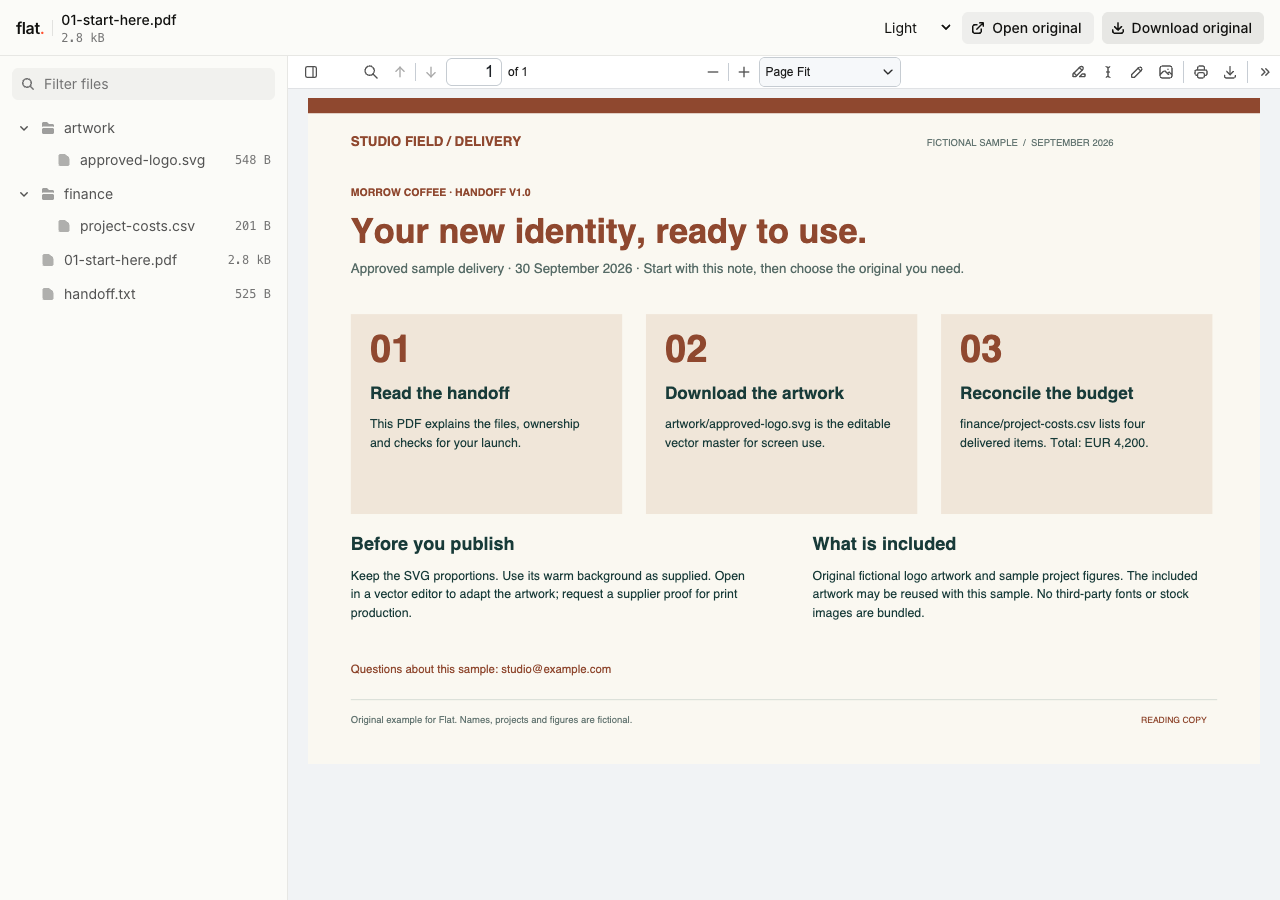
This fictional studio delivery explains which files to use, how to open the SVG artwork and where to check the EUR 4,200 sample budget.
- Start-here handoff PDF
- Editable logo artwork
- Project cost ledger
- Delivery instructions
- Download the complete sample pack

Extract the sample pack before uploading. To keep nested folders together, publish the extracted folder with the CLI.
Name files for the person receiving them.
Use names that describe the deliverable, such as approved-artwork.svg or project-costs.xlsx. Group related files in folders when the handoff has several parts. Explain which files are ready to use and which are editable sources. Your client should be able to choose the right file without knowing your studio's internal naming conventions.
Include the instructions for taking over.
Write a handoff note with the software needed to open source files and any setup steps. Add usage or license information for assets you supply. Put a contact address in the note for questions after delivery. You can link the collection from the final project ticket so the team receiving the work has the same reference as your client.
Prepare your files and share the link
1. Prepare a delivery folder.
Collect the approved files and remove working duplicates. Add a plain-text handoff note that identifies the starting document and explains the folder names.
2. Publish the files together.
Upload the collection and inspect its file list. Leave out a root
index.htmlif you want Flat's file explorer at the main link.3. Check the handoff as a recipient.
Open the main document and download an editable source. Send the link in your closing email with the name of the person taking over.
Before you publish
Can I include source files that Flat cannot preview?
Yes. Recipients can download those files and open them in compatible software. Supply a PDF or image reading copy when someone needs to inspect the result without the original design app.
Should I send a ZIP or upload the files separately?
Upload the files themselves if you want clients to browse and preview individual items. A ZIP remains an original file to download; Flat does not turn it into a browsable handoff. You can include a ZIP alongside the individual files if recipients need that package.
Who can open the link?
Browser uploads are public. Anyone with the link can open them without a Flat account. For restricted material, publish through the CLI or API with a visitor password set before you share. Recipients who have access can still download or forward copies. Set up password protection.
Can I replace files at the same address?
Yes. Publish through the CLI to a named onflat.page address or your own domain, then use that same domain for later uploads. Browser uploads create a new version link each time. Earlier version links and downloaded copies keep their original files. Set up a reusable address.
How long do uploads stay online?
Signed-in uploads have no default expiry. Signed-out uploads expire after one hour. Sign in before that deadline to keep them online. Your plan sets upload, storage, and transfer allowances. See pricing and limits.
Make the final delivery easy to find.
Publish your handoff folder and put its link in the project's closing message.
Free to start. View pricing