Flat / Campaigns and product launches
Publish the page for your next launch.
Give your product announcement a page you can link from a newsletter or campaign. Flat hosts your finished landing page, including the images and browser interactions you prepared for the launch.
Checking your upload limits... · Public · Limits
Drop your launch page here
or choose files from your device.
Choose launch pageThis uploader creates public links. For private files, set a password through the CLI or API.
Give visitors the announcement in one place.
Visitors open your page to read what is available and choose their next step. Your own HTML controls the layout and the links to your product, booking page, or checkout.
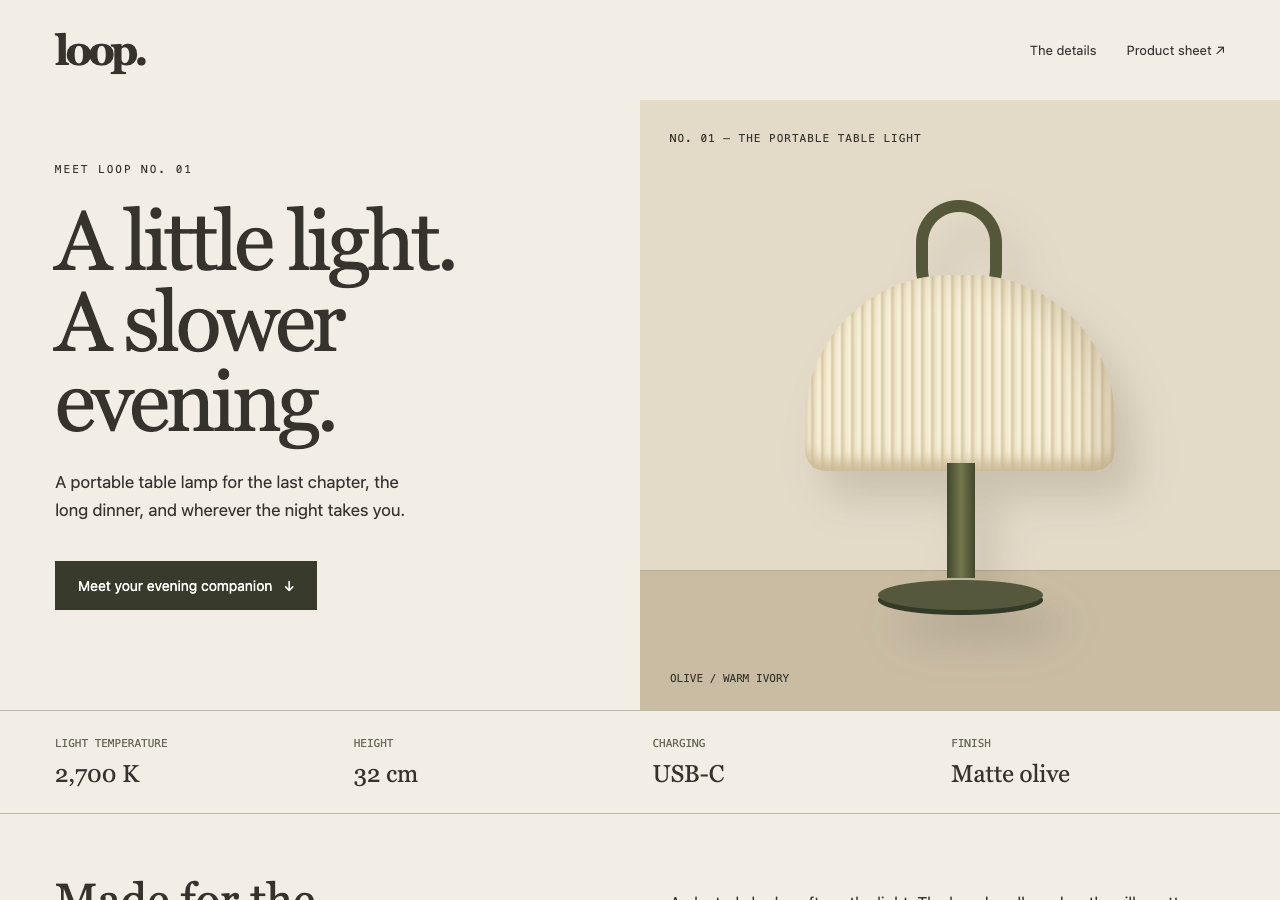
Explore a fictional portable lamp concept, jump to the product details, and download its design specifications.
Extract the sample pack before uploading. To keep nested folders together, publish the extracted folder with the CLI.
Give each campaign a focused destination.
Publish a page around the offer or release you are announcing. Include the information someone needs after clicking your email, such as availability and the product details behind the headline. A finished microsite lets you present that message in its own layout without asking visitors to search your main website for it.
Connect the next step before you send traffic.
Point purchase buttons to your checkout and signup links to the service that collects subscribers. Flat hosts the page but does not process purchases or store form submissions. Check that each destination accepts the visitor as expected. You can connect your domain to Flat when you want the campaign to use your own address.
Prepare your files and share the link
1. Finish the launch copy
Confirm the release date and button destinations in your editor. Export the static page with the assets it uses.
2. Publish the page
Upload a standalone
index.htmlabove. For a microsite with subfolders, extract the export and use the CLI to preserve paths.3. Check the visitor's next step
Open the published page on your phone. Follow its main button through to the signup or purchase destination before sending the campaign.
Before you publish
Can Flat collect leads from my launch page?
Use a separate form or email service to collect submissions. Your HTML can link to that service. If you embed its form, verify the published form with the provider before launch.
Can I include a downloadable product sheet?
Yes. Publish the PDF with your website files and link to its exact path from the page. With a root index.html, visitors see your website rather than a file list.
Can I upload a page that requires server rendering?
Flat needs finished static files. Export a static version where your framework supports it, and keep server-dependent features on a separate service.
Who can open the link?
Browser uploads are public. Anyone with the link can open them without a Flat account. For restricted material, publish through the CLI or API with a visitor password set before you share. Recipients who have access can still download or forward copies. Set up password protection.
Can I replace files at the same address?
Yes. Publish through the CLI to a named onflat.page address or your own domain, then use that same domain for later uploads. Browser uploads create a new version link each time. Earlier version links and downloaded copies keep their original files. Set up a reusable address.
How long do uploads stay online?
Signed-in uploads have no default expiry. Signed-out uploads expire after one hour. Sign in before that deadline to keep them online. Your plan sets upload, storage, and transfer allowances. See pricing and limits.
Your launch page can start with one file.
Upload the finished HTML and check the published result before adding its link to your campaign.
Free to start. View pricing