Flat / Automation reports
Give each completed report a reading link.
Your automation has produced a report that someone needs to read. Publish its finished HTML or supporting files with Flat, then include the resulting link in the message your workflow sends.
Checking your upload limits... · Public · Limits
Drop your generated report here
or choose files from your device.
Choose generated reportThis uploader creates public links. For private files, set a password through the CLI or API.
Let readers inspect the result of a run.
A reader can open the report without access to the machine that generated it. Include the run time and data period in the document so they know which result they are reviewing.
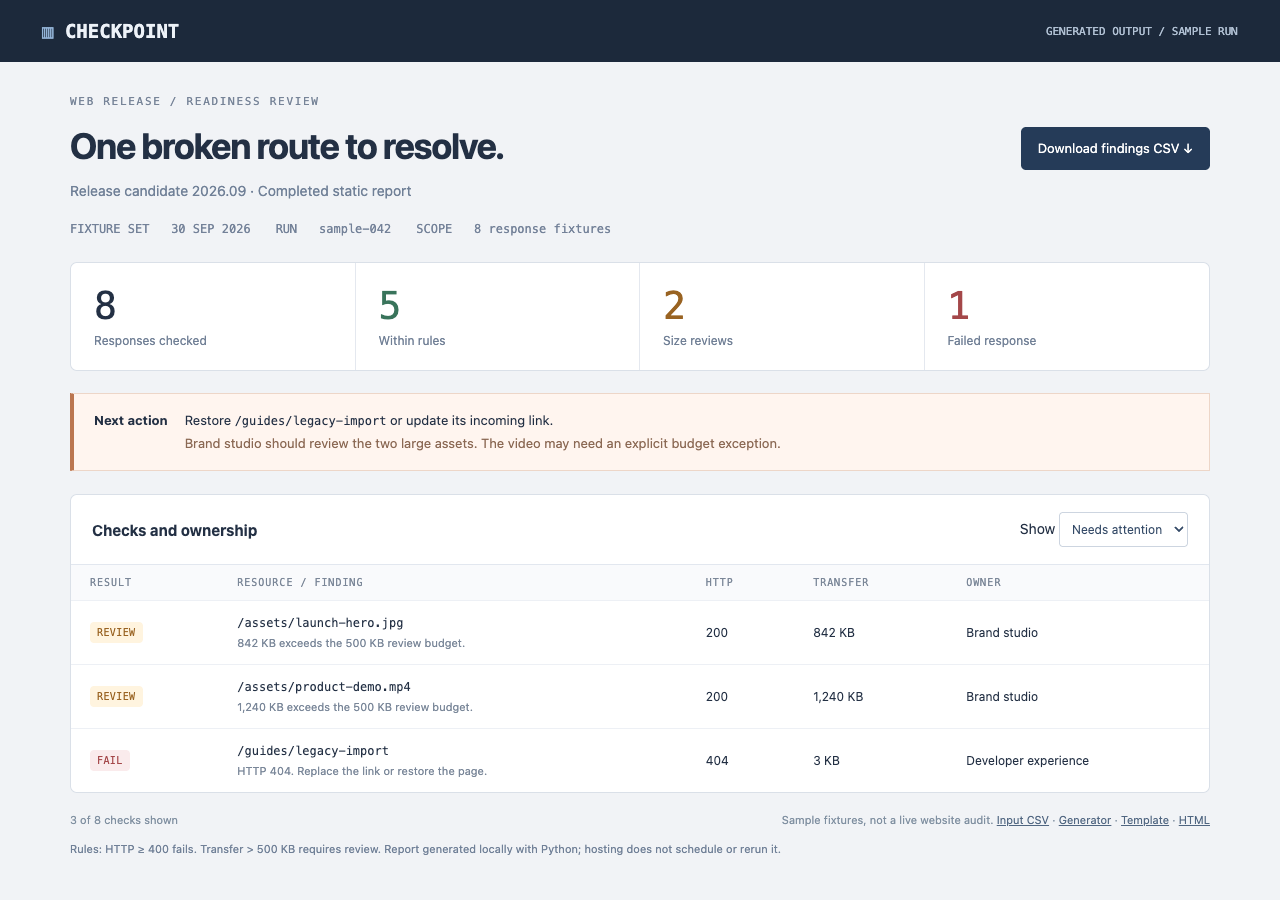
Inspect a completed report generated from eight labeled sample response fixtures. Filter the findings or download the CSV. The included Python script generates the HTML and findings locally; Flat hosts the finished output.
- Open working example
- Download generated report
- Download findings
- Download input fixtures
- Download report generator
- Download report template
- Download the complete sample pack
Extract the sample pack before uploading. To keep nested folders together, publish the extracted folder with the CLI.
Put findings beside the supporting output.
A completed audit can include a readable summary and a CSV of the findings. Link the supporting file from the HTML report so a colleague can check individual rows. If you publish a collection without a root index.html, Flat's file explorer lets readers choose a file and download the original.
Publish after the generating job finishes.
Keep report generation and scheduling in your existing automation. Once the output is complete, use Flat's CLI or API to publish it. Add the returned URL to your workflow's notification. Flat hosts the completed files; it does not run the agent, schedule the next report, or refresh a snapshot from your database.
Prepare your files and share the link
1. Inspect one completed report
Start with a real output file. Check the reporting period and remove intermediate logs or credentials that do not belong in the reader's copy.
2. Publish the output
Try one finished file in the uploader above. For recurring jobs, publish the complete output folder through the CLI or API after generation succeeds.
3. Add the link to your notification
Open the first published report and check its downloads. Then have your workflow include the returned URL in its existing email or chat message.
Before you publish
Will Flat rerun my report on a schedule?
No. Your scheduler or agent generates each report and initiates publication. Flat serves the resulting files after that upload completes.
Is an exported dashboard a live dashboard?
An export contains the data captured when you generated it. Publish a new output when the data changes. Any live requests built into the page require a separate service and its own browser access setup.
Can I include spreadsheet output?
Yes. Readers can preview supported spreadsheet data and download the original. Flat's spreadsheet preview is read-only and does not execute formulas or rerun your calculations.
Who can open the link?
Browser uploads are public. Anyone with the link can open them without a Flat account. For restricted material, publish through the CLI or API with a visitor password set before you share. Recipients who have access can still download or forward copies. Set up password protection.
Can I replace files at the same address?
Yes. Publish through the CLI to a named onflat.page address or your own domain, then use that same domain for later uploads. Browser uploads create a new version link each time. Earlier version links and downloaded copies keep their original files. Set up a reusable address.
How long do uploads stay online?
Signed-in uploads have no default expiry. Signed-out uploads expire after one hour. Sign in before that deadline to keep them online. Your plan sets upload, storage, and transfer allowances. See pricing and limits.
Start with the report from your last run.
Upload a finished output, check the reader view, then add publication to your existing workflow.
Free to start. View pricing