Flat / WebP hosting
WebP hosting: upload images and share a direct URL
Publish WebP images from your browser or the CLI. Share a preview link or use the original WebP URL for photos, transparent graphics, and animations on your website.
Checking your upload limits... · Public · Limits
Drop your WebP files here
or choose them from your device.
Select WebP filesWhat people see at your WebP link
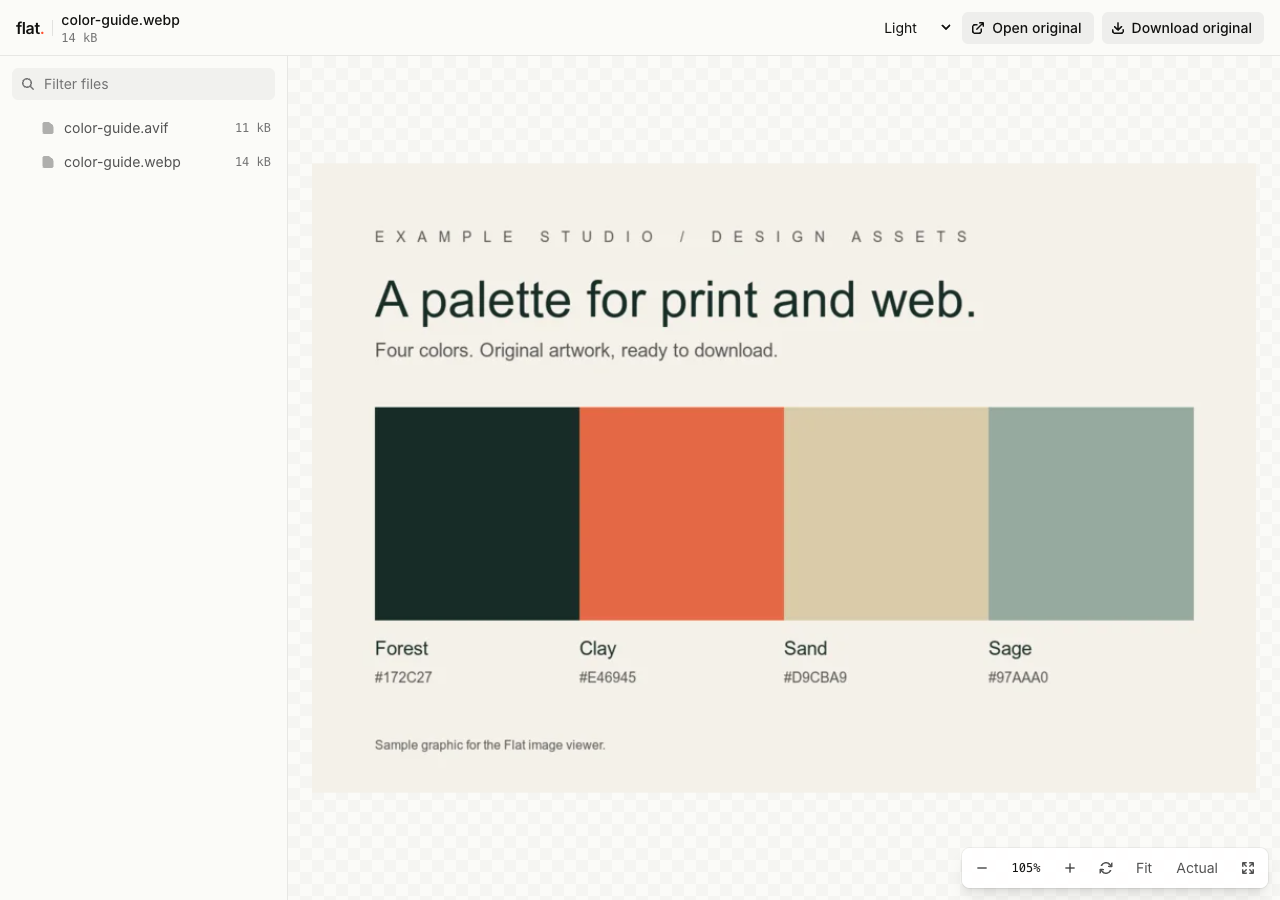
Flat displays the original WebP in its image viewer, with zoom, pan, and rotation controls. The browser decodes the file without Flat converting it to JPEG.
WebP supports lossy and lossless images, transparency, and animation. The viewer preserves what your export contains; a still image does not become animated.
A single image opens in Flat's viewer. Several files open in the explorer. Public links need no Flat account, and original downloads stay available.
The exact path /color-guide.webp serves the original image. Use the main link for the viewer, or the exact image URL when embedding a browser-compatible image on your website.
How to upload WebP files and get a URL
Prepare your images
Choose lossy or lossless compression in your image tool, then check dimensions, transparent edges, and file size. Flat does not recompress or resize your export.
For a website that needs older-browser support, publish a JPEG or PNG fallback and reference it in your own
pictureelement. Comparing another web format? See AVIF hosting.Publish from your browser or terminal
In your browserDrop, publish, copy the link.
Drop your finished images into the uploader above, or choose them from your device. Enter your email if signed out, then choose "Publish images".
Each file needs a unique name. Selected files publish at the top level. Use the CLI for folders; the browser uploader does not accept folders or extract ZIPs.
TerminalNode.js 20+One command. Files or folders.
npx -y @getflat/cli deploy ./color-guide.webpReplace the example path with your file, or pass a folder path to publish several images. The CLI preserves relative paths and prints the published URL.
Open and share the URL
Open the WebP in your target browsers. For transparent graphics, inspect the edges; for animations, watch a complete loop before sharing.
Signed-out uploads expire after 1 hour by default. Sign in before expiry to keep them online, or sign in before publishing for no default expiry.
What you can share with WebP hosting
- Website image assets
- Host pre-encoded images and reference their direct URLs from a website. Export sizes and fallbacks before uploading.
- Transparent web graphics
- Share artwork exported with alpha transparency. Keep the original format available for recipients who need that exact asset.
- Animated image exports
- Share an animated WebP for a short visual demonstration. Check frame timing and loop behavior in the browsers your audience uses.
Keep a version, or keep an address.
Share this version
Every upload gets its own link. Publishing revised files creates a new link and leaves the earlier version unchanged. Use the version link when someone needs to review a specific upload.
Update files at one address
Use a named onflat.page address or your own domain. Sign in, then publish with the CLI using --domain. Publish revised files with the same domain to point that address to the new upload.
Named addresses are included on Free. Adding your own domain requires a paid plan. The browser uploader does not set up or repoint these addresses.
WebP hosting questions
Is hosting free, and what are the limits?
Yes. Signed-in Free includes 5 MiB per upload, 1 GiB of storage, and 5 GiB of monthly transfer, with no default expiry. The per-upload limit covers all files in that upload. Paid plans raise these limits.
Do readers need a Flat account?
No. Public links open without a Flat account. Anyone with the link can open the uploaded files. Password-protected links also require the visitor password.
Can I password-protect my upload?
Yes. Password protection is available on every plan. Add --password YOUR_PASSWORD to your CLI deploy command. It protects access to the upload and its files, but does not prevent someone with access from saving a copy. The browser uploader creates public uploads.
Can I replace files without changing the link?
A version link always refers to its original upload. For same-address updates, use a named address or your own domain. Publish revised files with the same --domain value in the CLI to point that address to the new upload.
What happens when an upload expires?
Flat stops serving it. An expired upload cannot be recovered. Signed-out uploads expire after 1 hour by default. For browser uploads, use the sign-in link shown after publishing. For CLI uploads, run npx -y @getflat/cli login. Complete sign-in before expiry to keep the upload online. If you chose a shorter expiry in the CLI, that deadline stays in place.
Does Flat convert my images to WebP?
No. Export a WebP in your image tool before uploading. Renaming a JPEG to .webp does not change its encoding.
Will WebP transparency and animation survive the upload?
Yes. Flat keeps the uploaded bytes unchanged, including alpha transparency and animation data. Playback depends on the browser; the image viewer has no animation timeline.
Can I embed a hosted WebP on my website?
Use the exact WebP URL as your image source. For a fallback, use your own picture element with another uploaded format. Flat does not choose a format automatically.
How large can an image preview be?
Flat's viewer accepts image files up to 5 MiB. The browser must also be able to decode the image. Paid plans allow larger uploads, but do not raise the viewer's preview limit. Original files remain available to open or download when a preview is unavailable.
Another image format?
Find the guide for your next image.
Share your WebP files.
Publish your finished images, check the result, and copy the link.
Publish imagesFree to start · View pricing